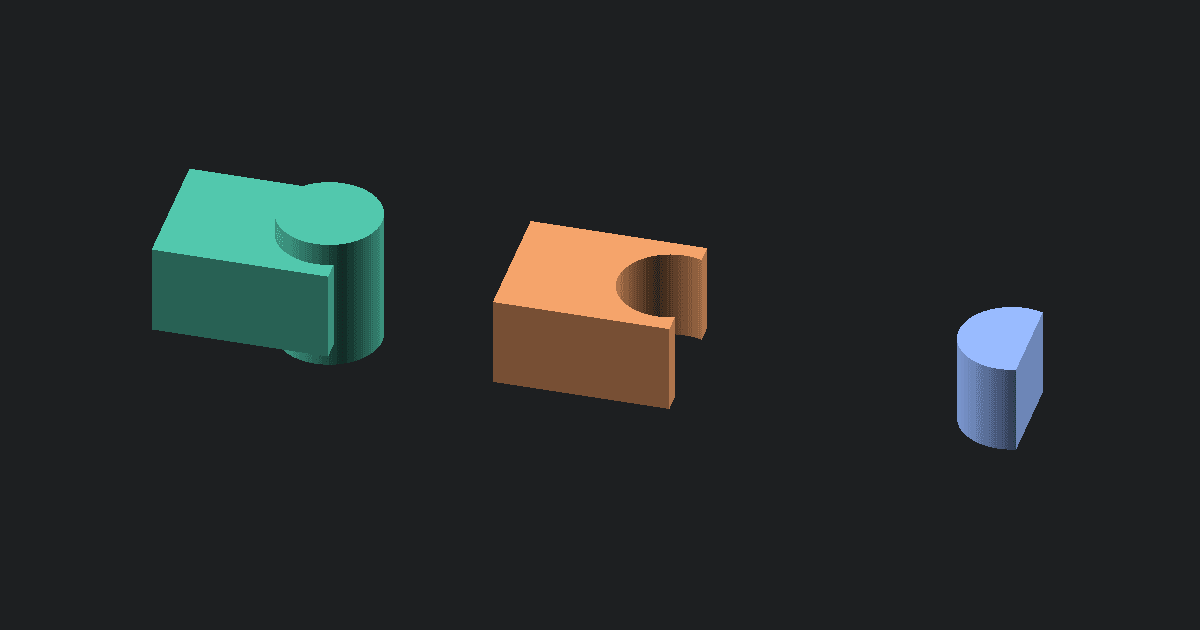
3MF Viewer helps you open a .3mf package in your browser, rotate the model, and check what is inside before you launch a slicer. This 3MF file viewer shows the mesh preview, objects, build items, triangle count, and detected color regions. It is useful for downloaded models, Bambu Studio or OrcaSlicer projects, client files, and quick print checks on a machine without 3D software installed.
The viewer runs locally in your browser. Your model is not uploaded to our servers, and there is no account step before you can inspect it.
Need to do more than view the file? Use the Free 3D Model Splitter to separate color regions or objects, the Free 3MF to STL Converter when you need a plain mesh, or the Free Online STL Viewer for exported STL files.
How to view a 3MF file online
- Save or download the model as a
.3mffile. - Upload the file into the viewer at the top of this page.
- Wait while the browser unpacks the 3MF package and reads the model XML.
- Drag to rotate, scroll to zoom, and inspect the model from several angles.
- Use the sidebar to check objects, build items, triangle count, vertices, components, and color regions.
- Open the same file in your slicer before printing if the job depends on printer profiles, plates, supports, or filament settings.
This is meant for fast inspection. It helps answer "is this the right model?" and "what does this package contain?" before you spend time loading a larger desktop app.
What is special about 3MF files
3MF is a ZIP-style package made for 3D printing. It can store mesh geometry, multiple objects, build placement, colors, materials, thumbnails, and slicer-specific project data in one file. That is why a 3MF often carries more useful print information than an STL.
The browser preview reads the model mesh, object resources, build items, transforms, and color groups it can find in the package. If the file exposes standard 3MF color data or common slicer paint metadata, the viewer can show those regions with separate colors.
Some details still belong in your slicer. Printer profiles, supports, build plates, modifier meshes, textures, thumbnails, and vendor-specific settings can vary by slicer. Use this page for preview and inspection, then use Bambu Studio, OrcaSlicer, PrusaSlicer, Cura, or your CAD tool for final manufacturing checks.
When to use a different 3D tool
Use this page when the source file is .3mf and you want to inspect the package without installing software. If you need to pull one part or one painted region out of the file, use the Free 3D Model Splitter.
If another app only accepts STL, convert the 3MF with the Free 3MF to STL Converter. Keep in mind that STL keeps geometry only, so colors, materials, plates, and slicer settings will not carry over.
If the model has already been exported as STL, open it in the Free Online STL Viewer. If you are checking a Rhino CAD file instead, use the Free 3DM Viewer.
Privacy and file limits
The 3MF is opened on your device. PrintNexus does not upload or store the model, and clearing the file or closing the tab removes it from the page.
The limit is 200 MB. That keeps the viewer responsive and helps avoid memory problems on phones, tablets, and older laptops. If a very large project struggles, try exporting a lighter review copy from your slicer.