
Table of contents
TL;DR: OpenSCAD Boolean operations decide what happens where shapes overlap. union() joins shapes together. difference() cuts later shapes out of the first one. intersection() keeps only the part the shapes share. Below, one block and one cylinder make all three results. For clean cuts, put the shapes in the right order, make them overlap, and let each cutter pass all the way through.
OpenSCAD Boolean operations turn plain shapes into parts you can use. In our OpenSCAD primitives guide, two cylinders cut holes in a desk organizer. The box and cylinders were simple. The cut is what made the model useful.
In this guide, you will start with one block and one cylinder. You will join them, cut one from the other, and keep only the space they share. Each result has a real OpenSCAD image and a short script. You can paste the script into the OpenSCAD Online Playground or the desktop app. In the Playground, press F5 or click Render to see the result.
Then you will build a small mounting plate with a raised peg and two screw holes. It uses two Boolean operations at once. You will also learn why a cut can seem to disappear, and what to check before you export an STL.
What Do OpenSCAD Boolean Operations Do?
OpenSCAD has three basic Boolean operations. Each one works on the shapes inside its curly braces { }. Those shapes are called its children. The operation decides which parts of its children to keep:
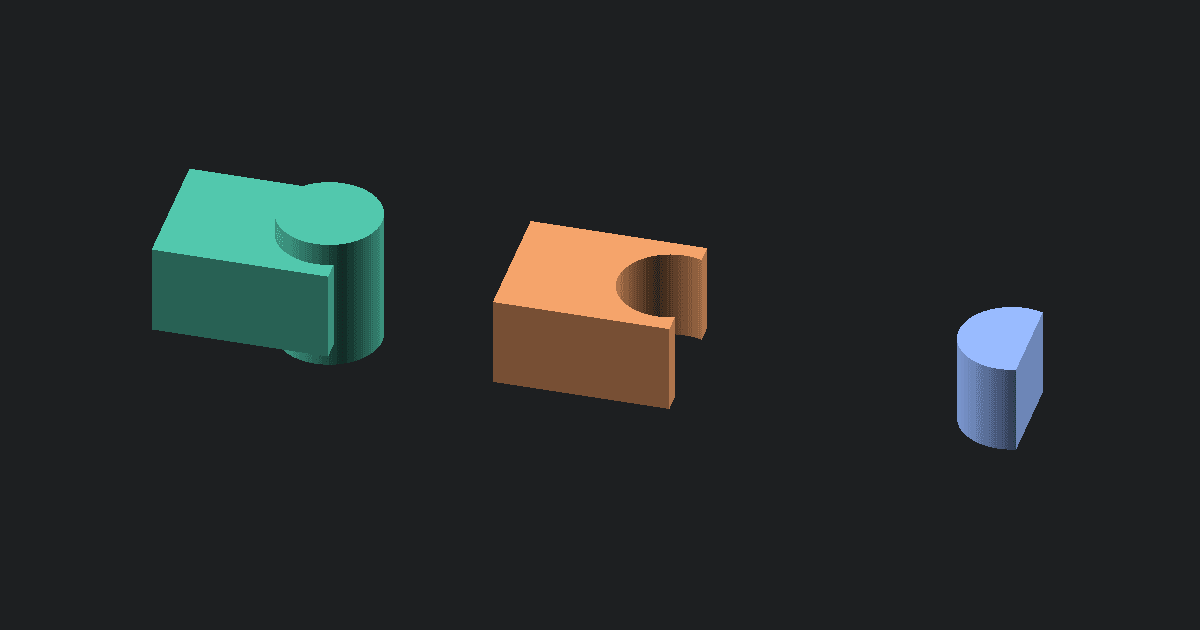
- Union: keep everything. The block and cylinder become one shape.
- Difference: keep the first child and cut the others out of it. Here, the cylinder cuts a rounded notch from the block.
- Intersection: keep only the part where the shapes overlap.
The official OpenSCAD language reference explains these operations for both flat 2D shapes and 3D shapes.
The picture at the top of this page shows the three results from left to right. All three use the same 30 by 24 by 16 mm block and an 18 mm wide cylinder. The cylinder is moved 12 mm along X, so it sticks out past the block's right edge.
That overlap is what makes the results useful. If the cylinder sat fully outside the block, union() would give you two separate pieces. difference() would leave the block unchanged. intersection() would show nothing at all.
How Does Union Join Shapes?
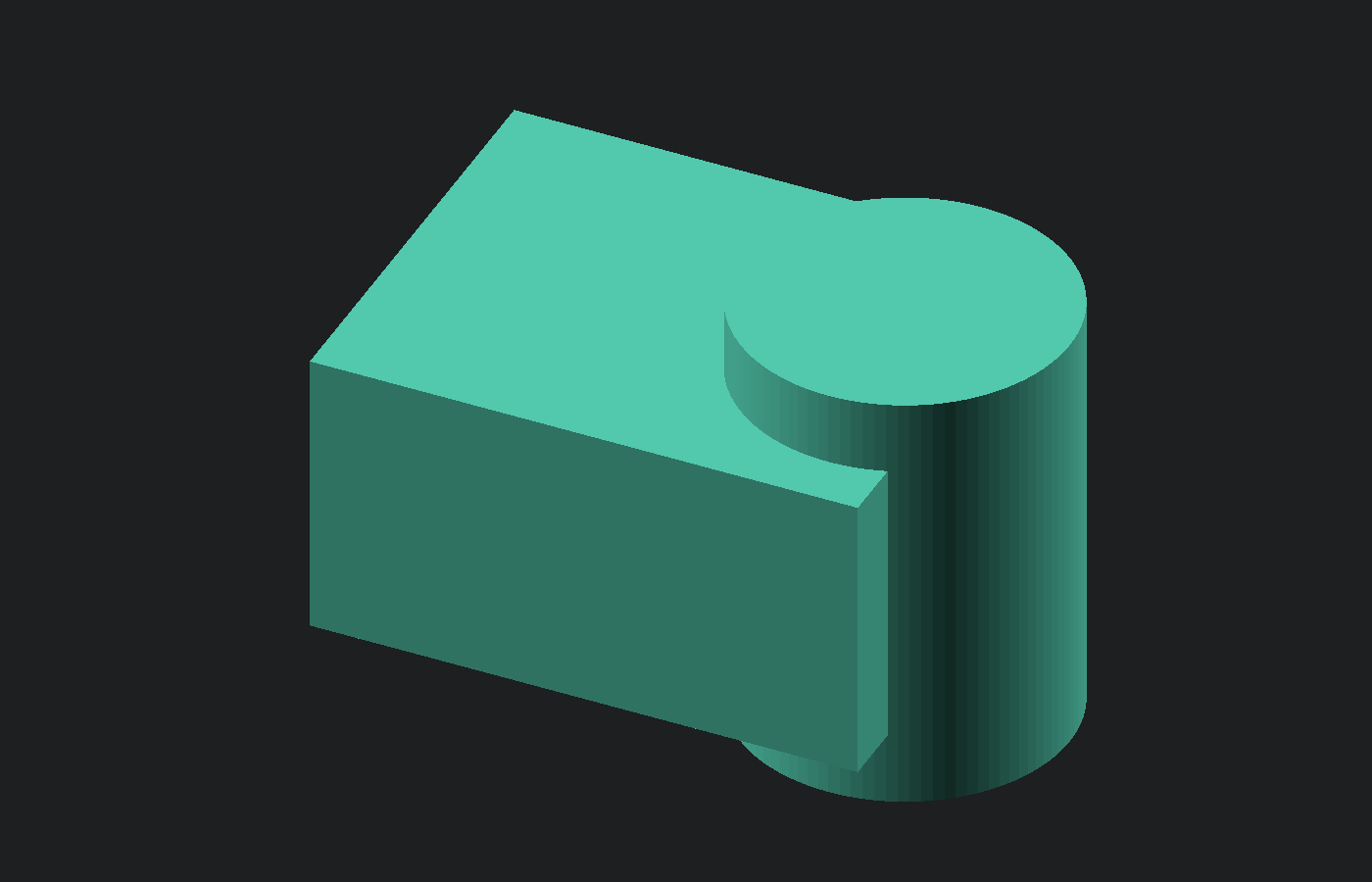
union() adds its children together. In this example, the cylinder is taller than the block and sticks out past its edge. So the result has a rounded side, plus a short post above and below the box. Because the two shapes overlap, they become one solid piece.
$fn = 96;

union() {
    cube([30, 24, 16], center = true);

    translate([12, 0, 0])
        cylinder(h = 24, d = 18, center = true);
}
You do not always need to type union(). If you list shapes one after another, OpenSCAD joins them anyway. Writing union() is still handy when you want to group shapes before another operation. The mounting plate later in this guide does that.
Joined shapes should overlap a little. If two shapes only touch along one flat face, OpenSCAD may not turn them into a clean solid. A small overlap fixes this. Union also cannot fill a real gap between two parts.
How Does Difference Cut Away Material?
difference() keeps its first child and cuts away every child after it. Here the block comes first, so the block stays. The cylinder cuts a rounded notch that opens at the block's right edge. The cylinder is only a cutting tool, so it does not show up in the result.
$fn = 96;

difference() {
    cube([30, 24, 16], center = true);

    translate([12, 0, 0])
        cylinder(h = 24, d = 18, center = true);
}
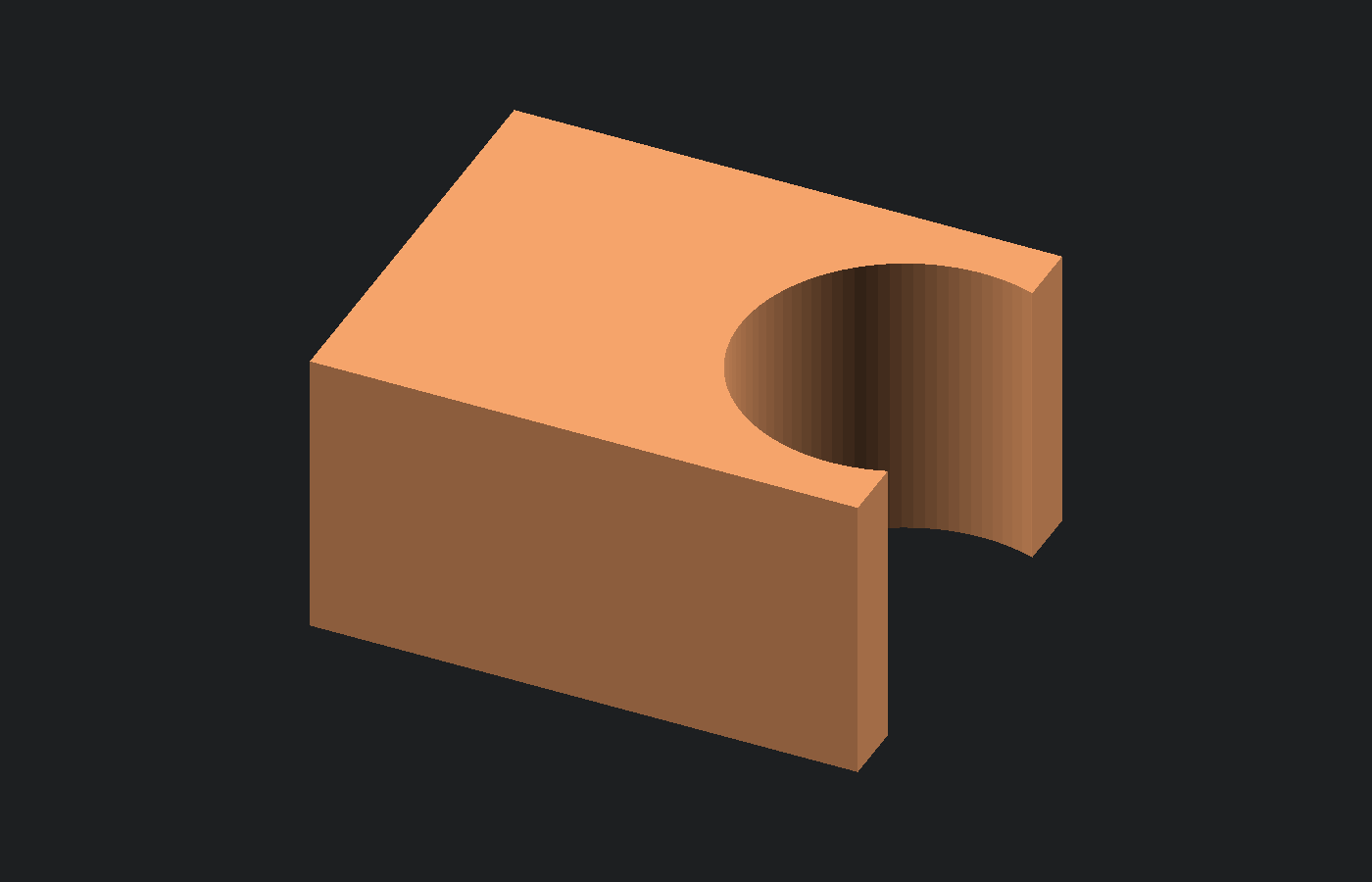
Order matters. If you put the cylinder first, OpenSCAD keeps the cylinder and cuts the block out of it instead.
The cylinder is 24 mm tall, but the block is only 16 mm tall. That extra height lets the cutter pass all the way through the top and bottom of the block. If a cutter stops exactly at a surface, the preview may flicker or the final model may break. So when you cut a hole through a plate, start the cutter below the plate and end it above.
When Should You Use Intersection?
intersection() keeps only the space that all of its children share. Here the block trims the cylinder, which leaves a curved piece with one flat side. Use it when you want to trim a shape to fit inside a boundary. For example, you can keep just the part of a round shape that fits inside a box.
$fn = 96;

intersection() {
    cube([30, 24, 16], center = true);

    translate([12, 0, 0])
        cylinder(h = 24, d = 18, center = true);
}
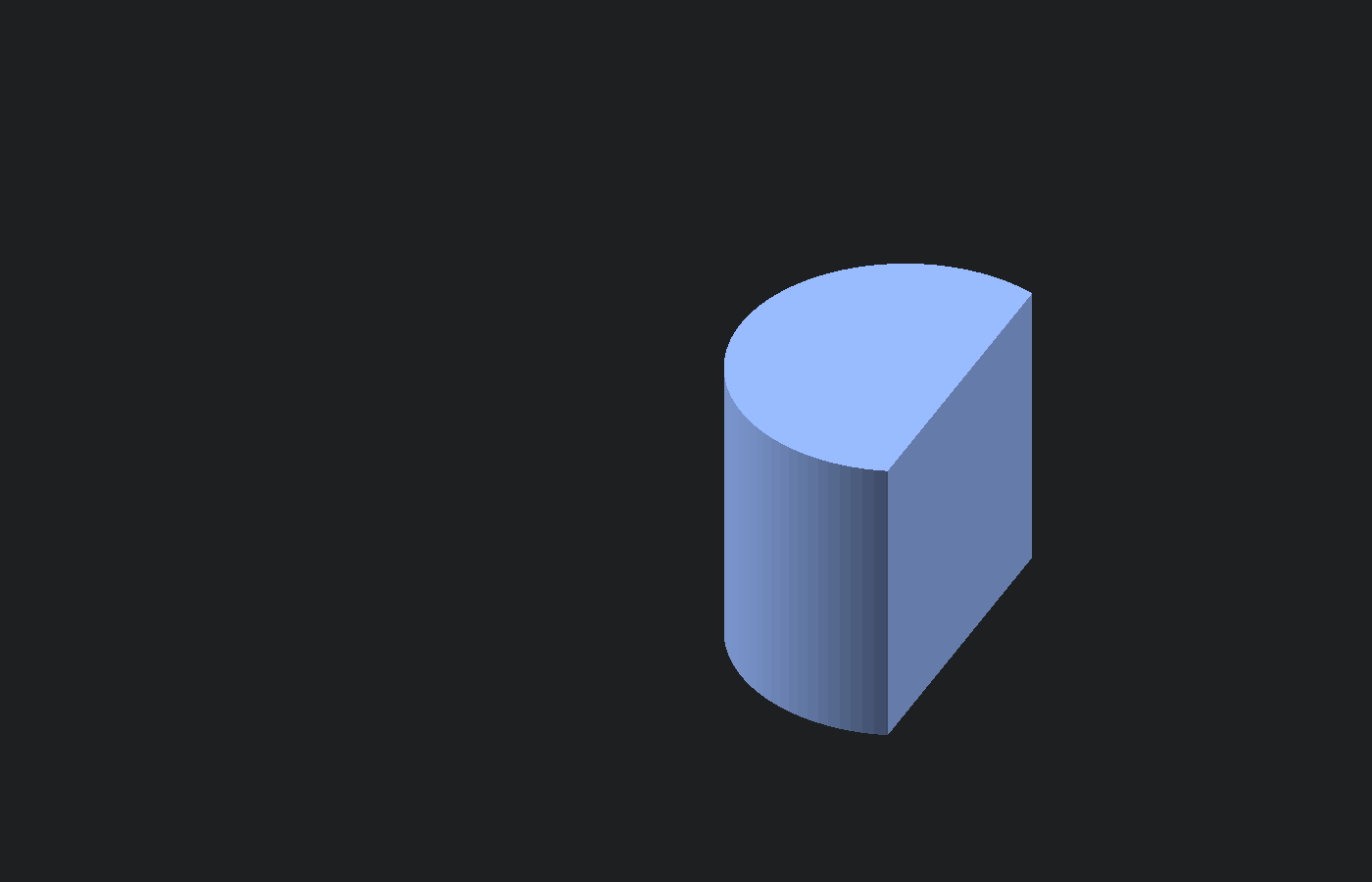
The result is smaller because everything outside the shared space is thrown away. If the shapes do not touch, nothing appears. Move one shape until they overlap, then preview again.
All three operations work on flat 2D shapes or on 3D shapes. Just do not mix the two in one operation.
Mini Project: Make a Two-Hole Mounting Plate
This small plate uses union() and difference() together. Union adds a round peg on top of the plate. Difference cuts two screw holes through it. The peg sits in the middle between the holes, so you can see what each operation does.
The script starts with a few variables. A variable is a name that stores a number, like plate_width = 60;. The rest of the code uses these names instead of plain numbers. To change the plate, you only edit the numbers at the top.
Copy the complete script into OpenSCAD:
$fn = 96;

plate_width = 60;
plate_depth = 28;
plate_thickness = 5;
peg_diameter = 12;
peg_height = 12;
hole_diameter = 4.5;
overlap = 0.2;

difference() {
    union() {
        cube([plate_width, plate_depth, plate_thickness]);

        translate([plate_width / 2, plate_depth / 2, plate_thickness - overlap])
            cylinder(h = peg_height + overlap, d = peg_diameter);
    }

    for (x = [10, plate_width - 10]) {
        translate([x, plate_depth / 2, -1])
            cylinder(h = plate_thickness + 2, d = hole_diameter);
    }
}
Here is how the script works:
union()joins the plate and the peg into one solid.difference()cuts the holes out of that solid. Theunion()is its first child, so it is the part that stays.- The
forline makes the holes. It repeats the cylinder once for each number in the list[10, plate_width - 10]. That gives you one hole 10 mm from the left end and one hole 10 mm from the right end.
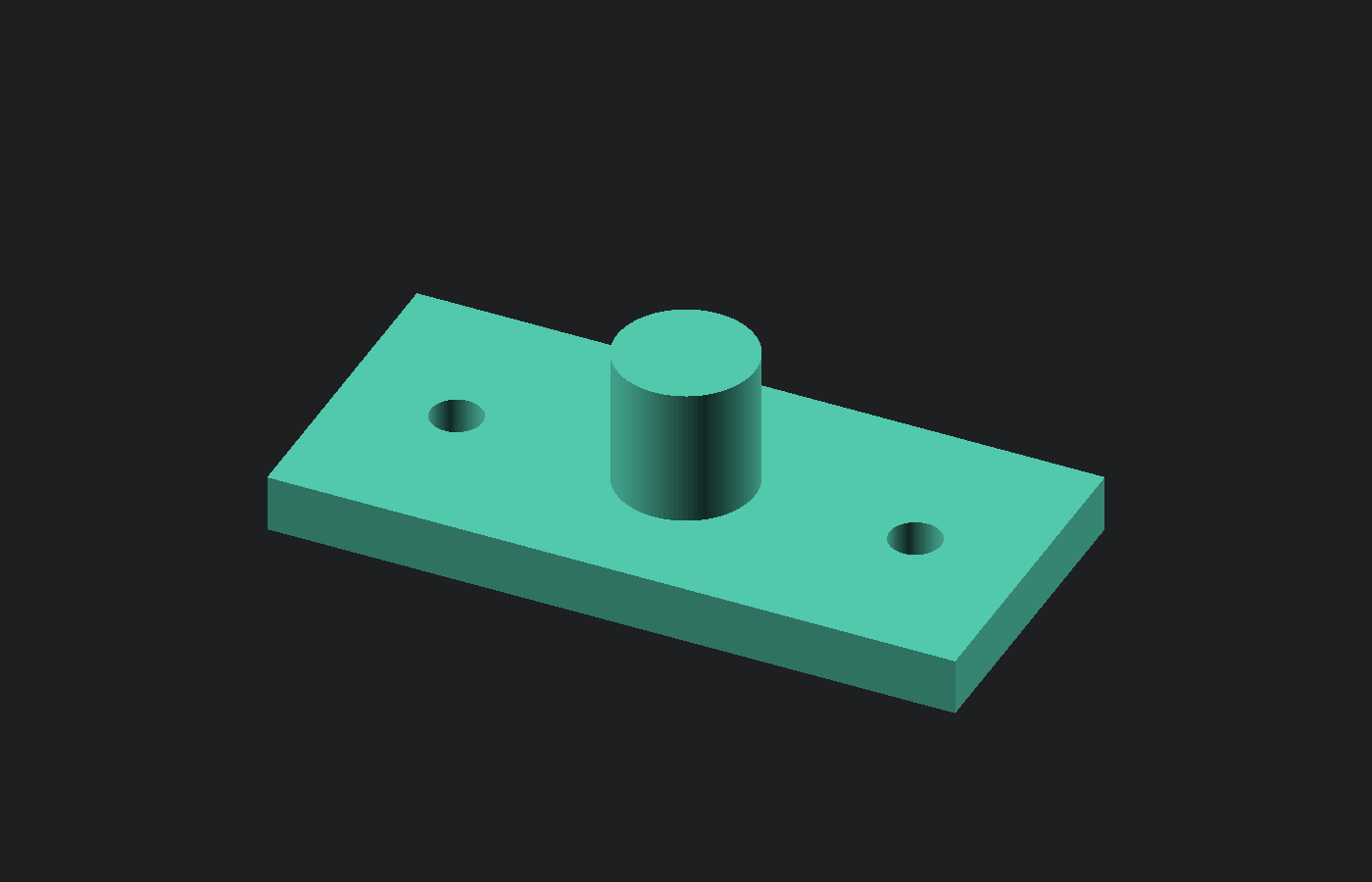
The plate starts at Z = 0 and is 5 mm thick. The peg starts 0.2 mm below the top of the plate, so the two overlap instead of just touching. Each hole cutter starts 1 mm below the plate and ends 1 mm above it. These small extras give OpenSCAD clean joins and cuts. The 4.5 mm holes are only an example. Measure your own screws before you print a part to use.
Try changing peg_diameter or plate_width, then press F5 to preview again. The holes stay 10 mm from each end, even when the plate gets wider. When you like the shape, press F6 for the full render.
Why Does a Boolean Look Wrong?
When a Boolean does not look right, check these points in order:
- First child: In
difference(), the first shape is the one that stays. Every shape after it is a cutter. - Real overlap: A cutter outside the shape cannot remove anything. If
intersection()shows nothing, the shapes do not overlap. - Clean crossing: Make each cutter stick out past both sides of the wall or plate. Give joined shapes a small overlap instead of letting their faces just touch.
- Debug marks:
#highlights a shape in the preview.%shows a see-through shape but leaves it out of the result, so a cutter marked with%will not cut. - Final render: F5 is only a quick preview, and it can show glitches where faces meet. Press F6 and read the console before you decide the model is broken or export it.
If you still cannot see where a cutter goes, type # in front of it. OpenSCAD then shows that shape in see-through red, but it still uses the shape to cut. The example below uses the same cutter as the difference example. This highlight only shows in the desktop app's F5 preview. The Playground always shows the finished model, so the red shape will not appear there.
$fn = 96;

difference() {
    cube([30, 24, 16], center = true);

    #translate([12, 0, 0])
        cylinder(h = 24, d = 18, center = true);
}
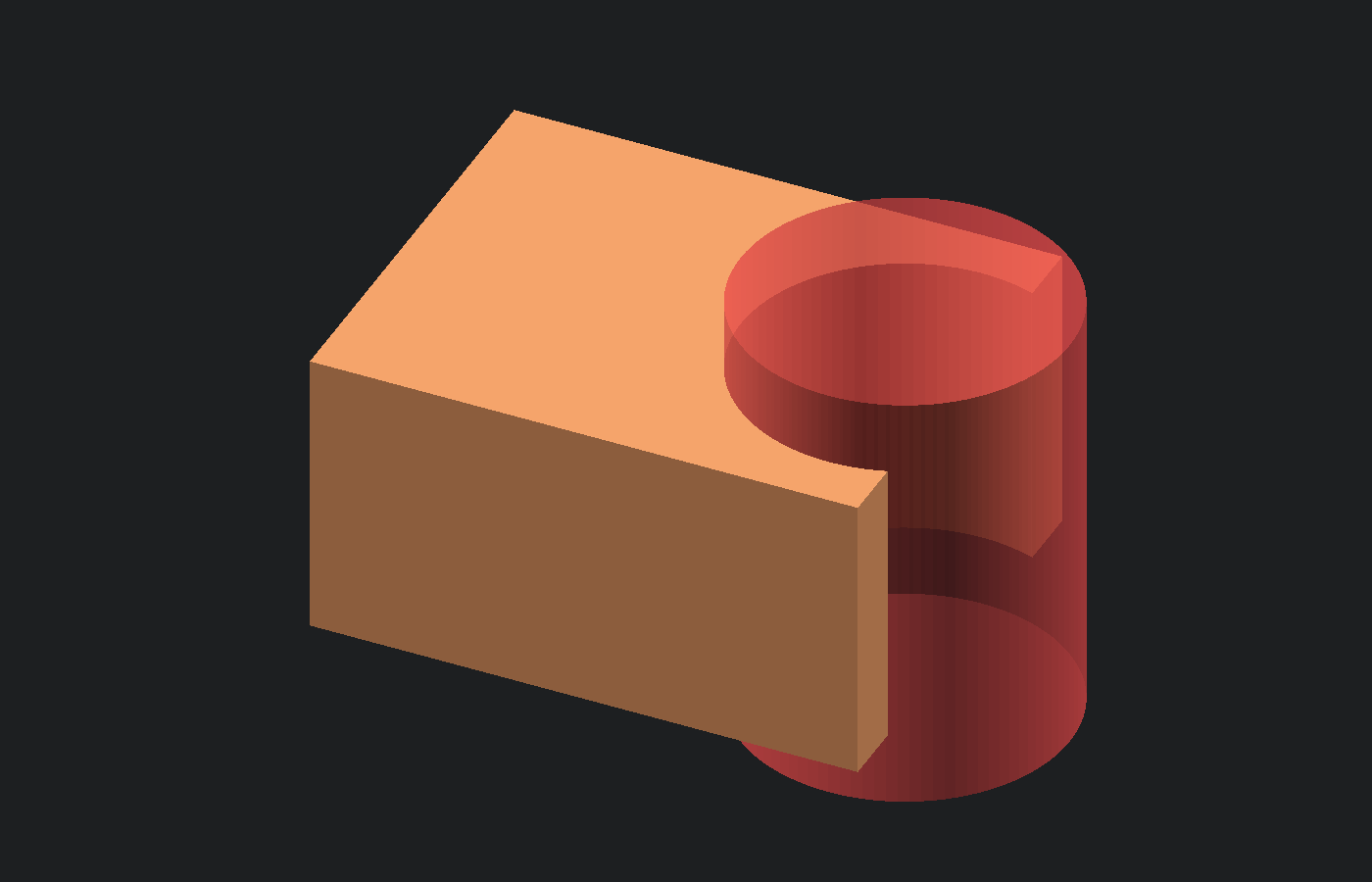
# when you are done checking.After a clean F6 render, choose File > Export > Export as STL. You can open the saved file in the Free STL Viewer to look it over. Then check its size and holes in your slicer. To open the .scad file in a browser later, use the Free OpenSCAD Viewer.
Frequently Asked Questions
Why is my OpenSCAD difference not working?
First, check that the shape you want to keep comes first. Then put # in front of the cutter to see if it really passes through that shape. Move or lengthen the cutter if needed, and press F6 to see the final result.
Does OpenSCAD union make one printable piece?
Yes, if the shapes overlap. Union cannot fill a gap between separate pieces. If two shapes only touch, give them a small overlap. Then check the F6 render before you print.
What is the difference between difference and intersection?
difference() keeps the first shape and cuts away the parts where later shapes overlap it. intersection() keeps only the overlap. Try both on the same two shapes to see how they differ.
Can I use Boolean operations on 2D shapes?
Yes. You can join, cut, or overlap flat shapes such as circles and squares. Just keep every shape in one operation either all 2D or all 3D. OpenSCAD cannot mix them.
Why does the F5 preview differ from the F6 render?
F5 is a quick preview. F6 builds the final model. Faces that line up exactly can make the preview flicker. Make cutters pass all the way through, give joined shapes a small overlap, and use F6 to check the real model before you export.
Try the Next Shape
You now know three ways to change a pair of shapes. You can add them, cut one from the other, or keep only the part they share. Start with the block and cylinder examples. Change one size or position and watch what happens. The mounting plate shows how one short script can use more than one operation.
Paste an example into the OpenSCAD Online Playground and try moving the cylinder. Then solve the union, difference, and intersection problems in the Free OpenSCAD Exercises. You can also go back to the OpenSCAD primitives guide and give its desk organizer a new cut or a joined feature. Small changes like these help the rules stick better than a long list of commands.