
Table of contents
TL;DR: OpenSCAD primitives are the basic shapes used to build 3D models with code. This guide shows you how to make cubes, spheres, cylinders, and cones. You will also meet the main 2D shapes. Each example uses short code and a real OpenSCAD render. Then you will combine two primitives to make a small desk organizer, and finish with polyhedron() for custom shapes.
OpenSCAD can look strange when you first open it. Most 3D design programs ask you to click and drag shapes. OpenSCAD asks you to type a short command instead. The code on the left tells the program what to build. The view on the right shows the result.
That may sound hard, but the first steps are small. A box needs one line of code. A ball also needs one line. You can change the size by changing one number. If you make a mistake, OpenSCAD points to the problem in its console.
This guide starts with the basic OpenSCAD primitives, then shows how they fit together. You do not need any coding experience. You can install the desktop program, or run the same examples in the free OpenSCAD Online Playground. If you want short problems with shape checks, try the Free OpenSCAD Exercises. The images on this page were rendered by OpenSCAD from the code shown.
What Are OpenSCAD Primitives?
OpenSCAD primitives are simple shapes that are built into the program. Think of them as digital building blocks. You can resize them, move them, join them, or cut one shape from another. Those small steps can produce useful parts for 3D printing.
The official OpenSCAD cheat sheet lists four main 3D primitives:
cube()makes a cube or box.sphere()makes a ball.cylinder()makes a cylinder, cone, or tapered shape.polyhedron()makes a custom solid from points and faces.
OpenSCAD also has flat 2D primitives. These include square(), circle(), and polygon(). You can turn a flat shape into a solid later with an extrusion.
Meet the OpenSCAD Screen
The OpenSCAD window has three main parts. The text editor is where you type your code. The viewing area shows your model. The console shows messages, warnings, and errors.
Type this line in the editor:
cube(20);
The number 20 sets all three sides to 20 units. OpenSCAD usually treats one unit as one millimeter when you export a model for printing. The semicolon tells OpenSCAD that the command is finished.
Now press F5. F5 makes a quick preview. It is the button you will use most while changing a model. You can drag in the viewing area to turn the camera and use the mouse wheel to zoom. In the OpenSCAD Online Playground, press F5 or click Render instead.
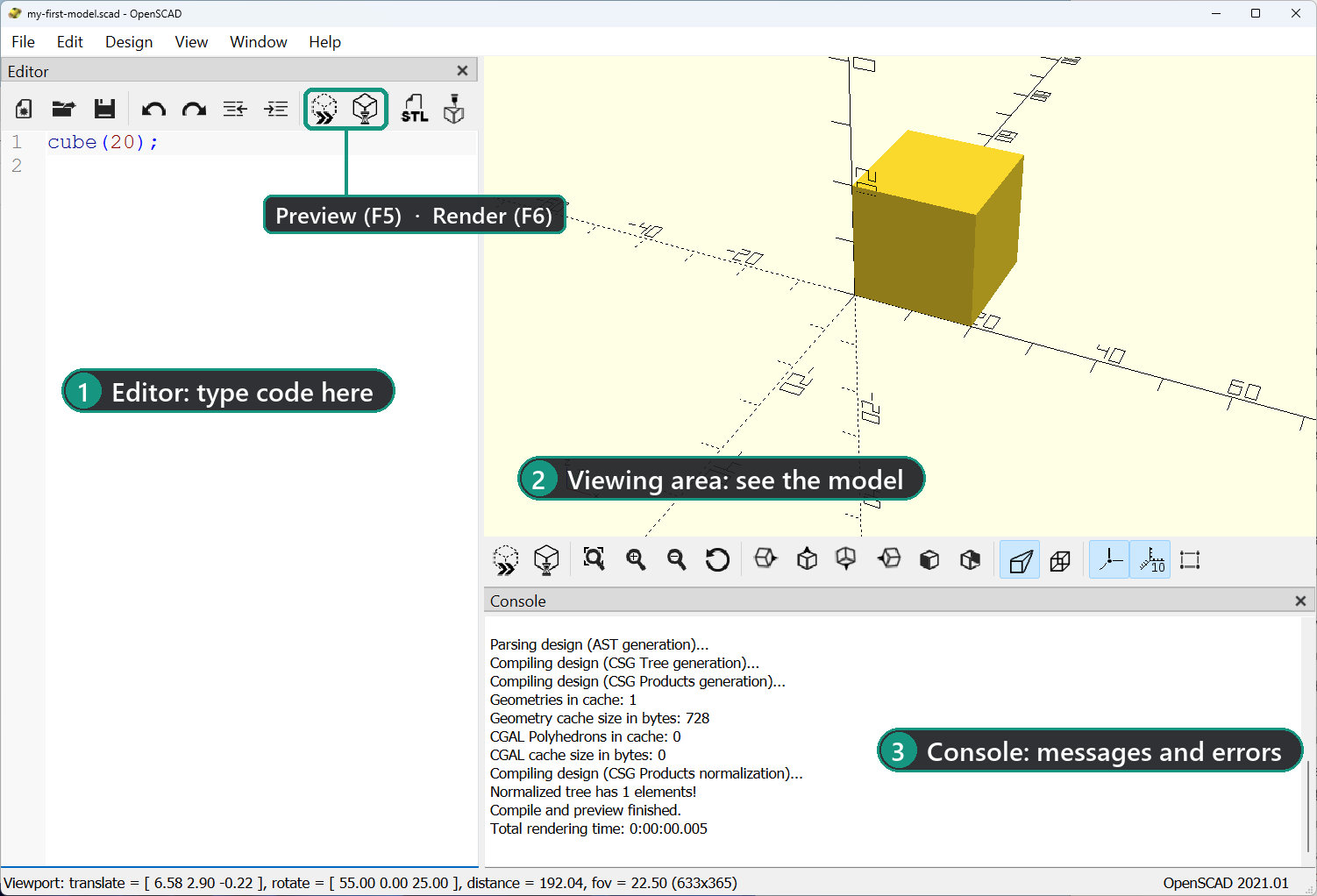
cube(20);. The two buttons above the code do the same job as F5 and F6.Press F6 when you want OpenSCAD to fully render the model. A full render checks the final geometry and is needed before a reliable export. Preview is fast but can show small visual glitches. Render is slower because it builds the real geometry.
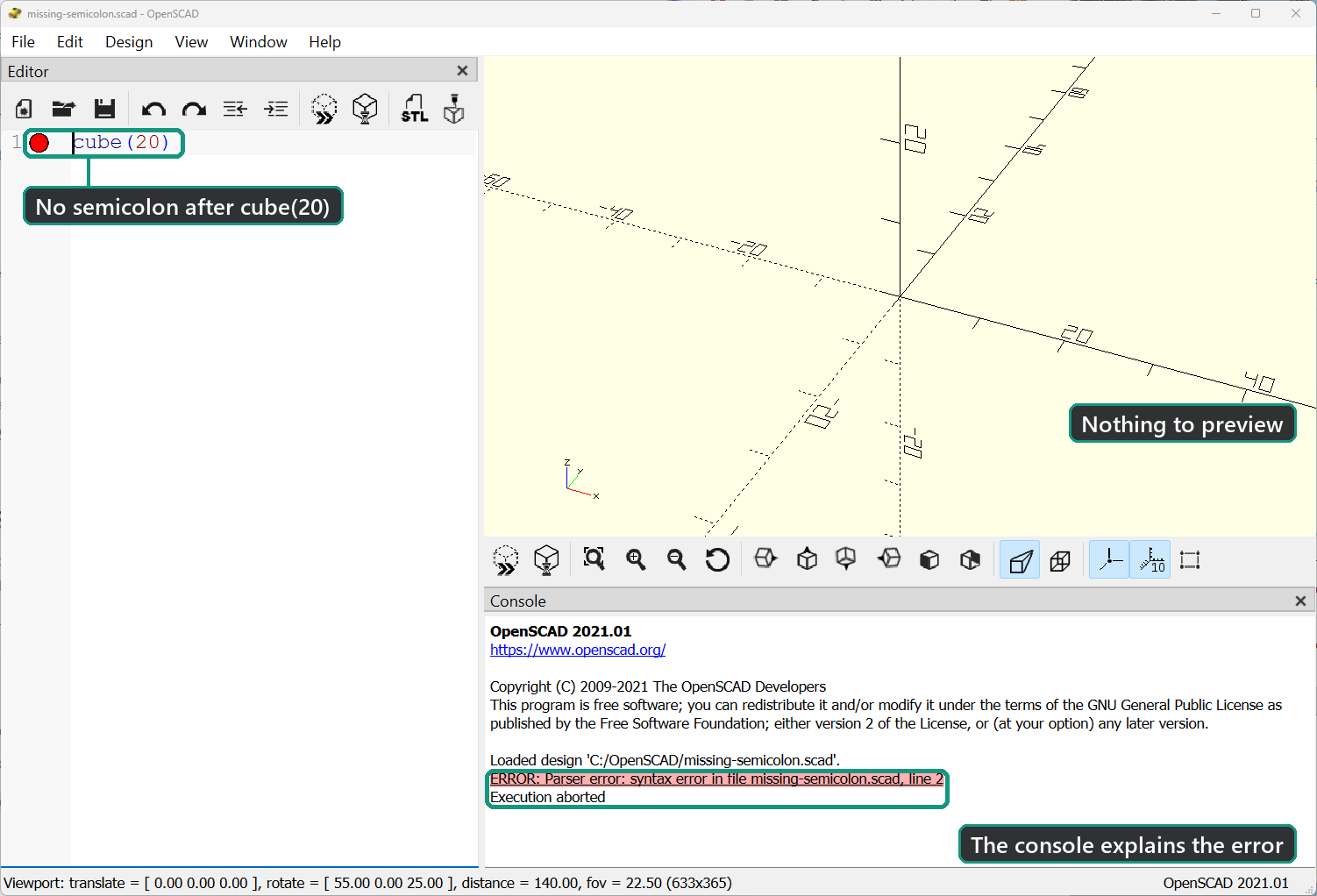
If nothing appears, look at the console. A missing semicolon is a common first error. Fix the line, press F5 again, and keep going.
How Do Cube, Sphere, and Cylinder Work?
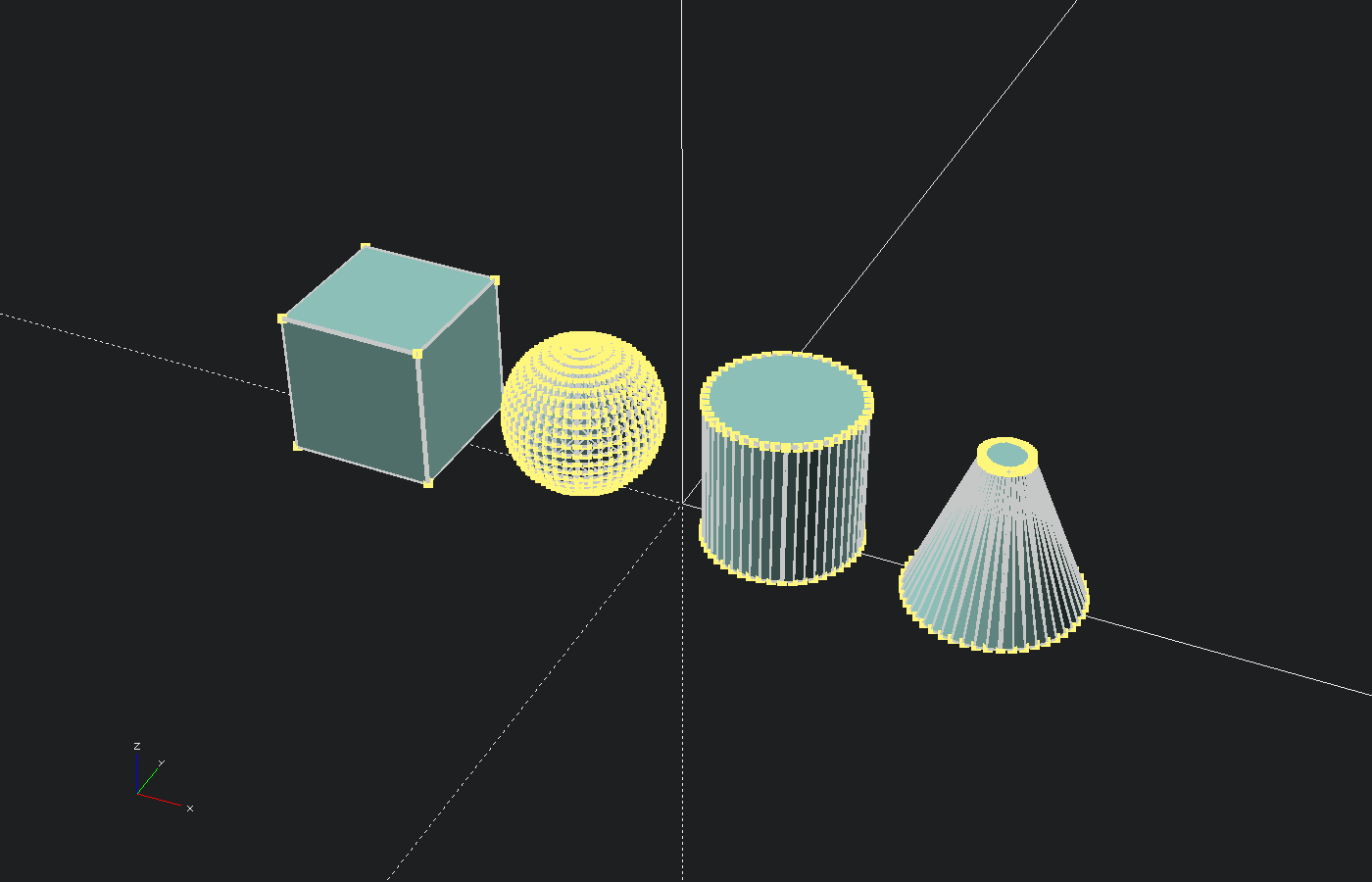
Cube, sphere, and cylinder are the best primitives to learn first. A cube can become any plain box. A sphere makes round forms. A cylinder can make posts, holes, cones, and many other printable features. The official primitive solids page lists every parameter they accept.
Make a cube or box
This code makes a box that is 30 mm wide, 20 mm deep, and 10 mm tall:
cube([30, 20, 10], center = true);
The three numbers are the X, Y, and Z sizes. They are kept inside square brackets. center = true places the middle of the box at the origin, which is the point where the X, Y, and Z axes meet.
Without center = true, one corner starts at the origin and the box grows in the positive directions. Neither choice is wrong. Centering is often easier when you plan to rotate a part or cut a hole through its middle.
Make a sphere
This code makes a sphere with a 20 mm diameter:
sphere(d = 20, $fn = 48);
The letter d means diameter. You can use r for radius instead. Named values such as d = 20 make code easier to read because you can see what each number means.
$fn = 48 tells OpenSCAD to build the curve from 48 flat sections so it looks smooth. The section on why round shapes look blocky explains it.
Make a cylinder
This cylinder is 30 mm tall and 20 mm wide:
cylinder(h = 30, d = 20, center = true, $fn = 48);
The letter h means height. Just like the box, the cylinder can be centered. It grows upward from the build plane when center is left out or set to false.
Make a cone
OpenSCAD uses the cylinder primitive to make cones. Give the bottom and top different diameters:
cylinder(h = 30, d1 = 24, d2 = 8, $fn = 48);
Set d2 = 0 if you want a sharp point. A small flat top is often easier to print and less likely to create a fragile tip.
Why Do Round Shapes Look Blocky?
OpenSCAD builds curved surfaces from many small flat sections. The special value $fn controls how many sections are used. A low value renders faster and looks more angular. A higher value looks smoother, but it creates more geometry and can take longer to render.
Try these two spheres together:
translate([-16, 0, 10])
    sphere(d = 20, $fn = 12);

translate([16, 0, 10])
    sphere(d = 20, $fn = 64);
The translate() command moves a shape. The first list moves the low-detail sphere 16 mm left. The second list moves the smoother sphere 16 mm right.
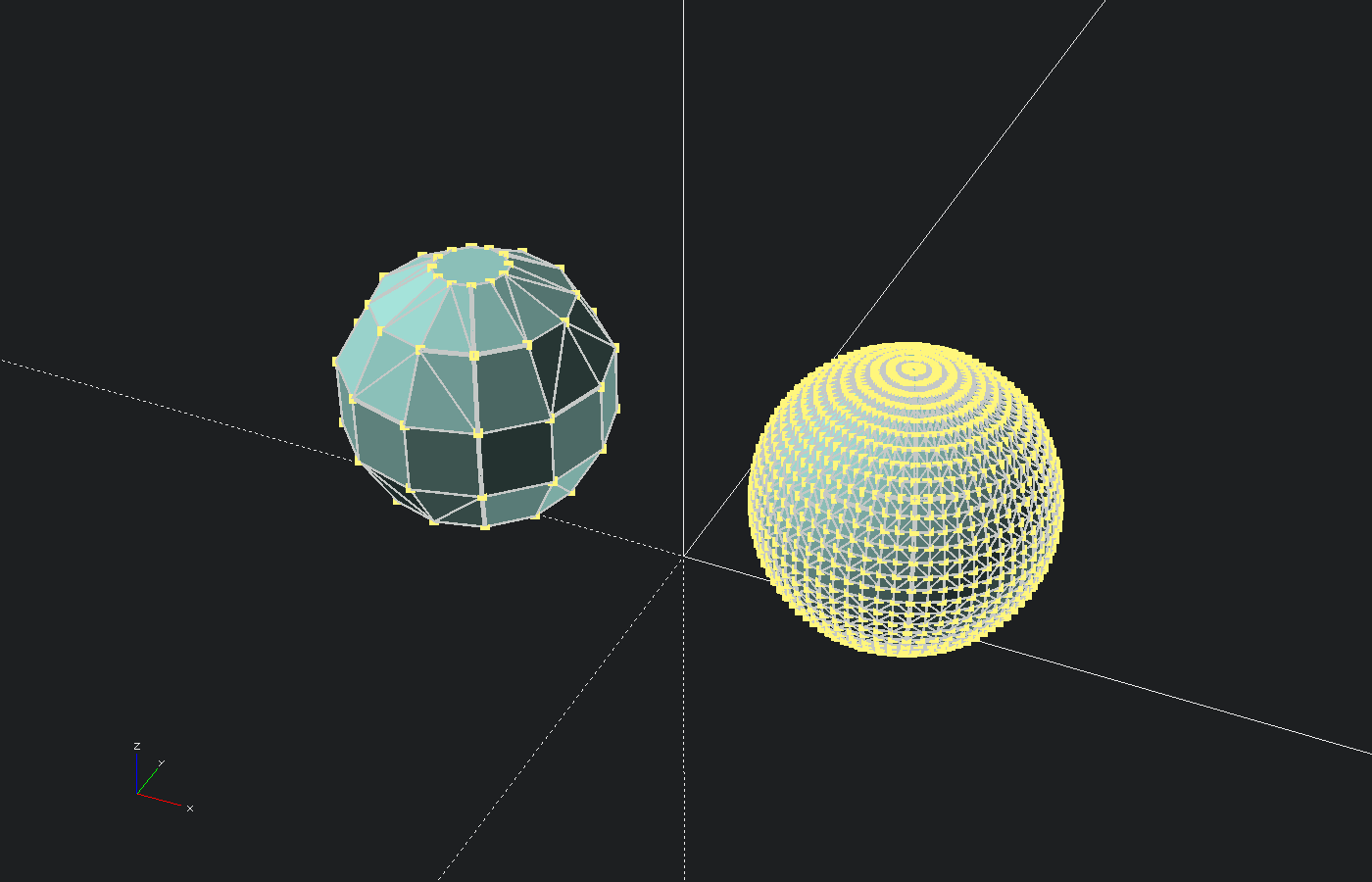
$fn = 12 sphere is clearly faceted. The $fn = 64 sphere uses many more sections.OpenSCAD also has $fa and $fs for controlling curved detail. Beginners can start with $fn because it is easy to see and change. Values from 32 to 64 are a good learning range for small examples. You can raise the value later if a final model still looks rough.
Do not set every shape to a very high value right away. A model with many smooth spheres and cylinders can become slow. First make the shape work. Then add more detail.
What Are 2D Primitives Used For?
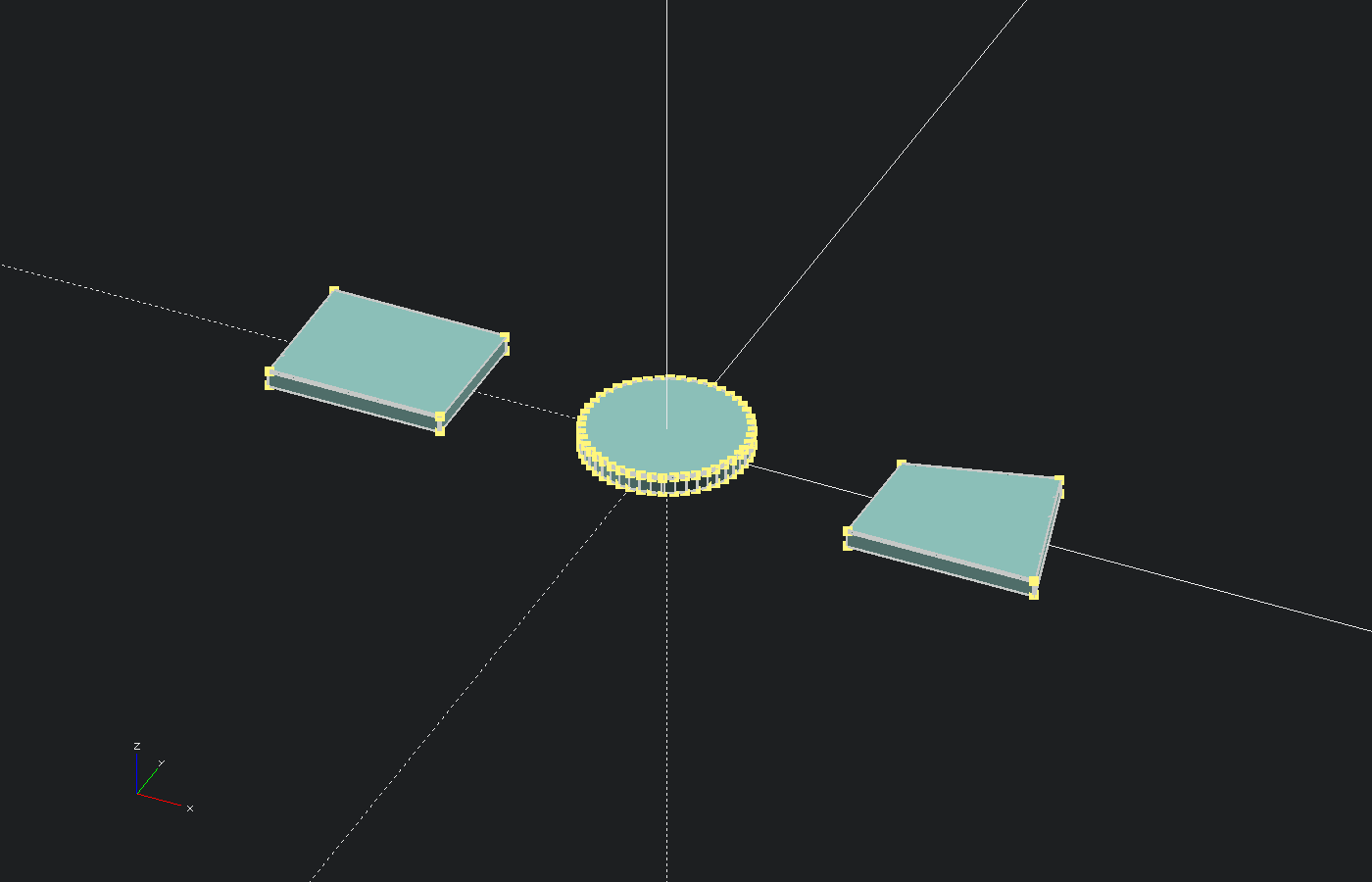
OpenSCAD 2D primitives make flat shapes. The main ones are square, circle, and polygon. They are useful for signs, tags, logos, gaskets, and outlines. A flat shape becomes a printable solid when you give it height with linear_extrude().
Here are the three basic commands:
square([30, 20], center = true);

circle(d = 20, $fn = 48);

polygon([
    [0, 0],
    [30, 0],
    [20, 20],
    [0, 15]
]);
The polygon points use only X and Y values because the shape is flat. OpenSCAD connects the last point back to the first one.
This code turns a circle into a 4 mm thick disk:
linear_extrude(height = 4)
    circle(d = 20, $fn = 48);
If you already have artwork, you do not need to draw every point by hand. The PrintNexus SVG to OpenSCAD Converter turns SVG outlines into OpenSCAD polygon code. The DXF to OpenSCAD Converter does the same for clean 2D CAD outlines.
Mini Project: Build a Two-Hole Desk Organizer
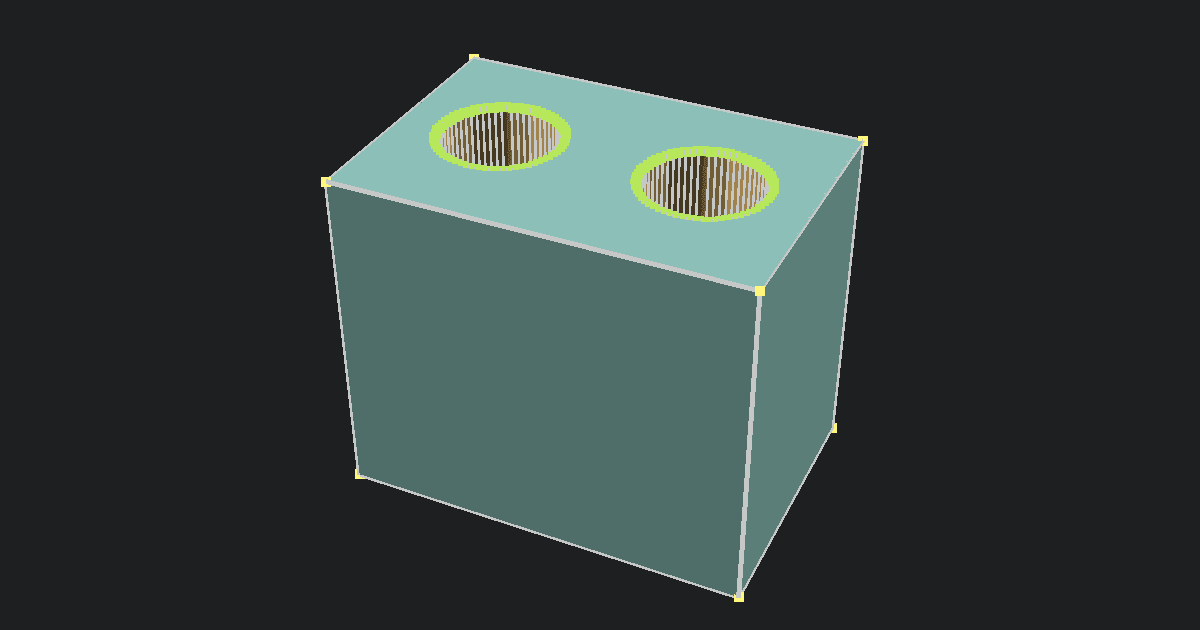
Now you can combine two primitives in one useful model. The organizer starts as a box. Two cylinders pass down from the top. The difference() command removes those cylinders and leaves two holes.
Copy this complete code:
$fn = 64;

color("#43c6ac")
difference() {
    cube([60, 40, 50]);

    translate([15, 20, 5])
        cylinder(h = 50, d = 18);

    translate([45, 20, 5])
        cylinder(h = 50, d = 18);
}
difference() keeps the first shape inside its braces. It removes every shape that comes after it. The cylinders begin 5 mm above the bottom, so the organizer keeps a 5 mm thick floor.
color() only changes how the model looks on screen. It does not change the printed part, so you can delete that line.
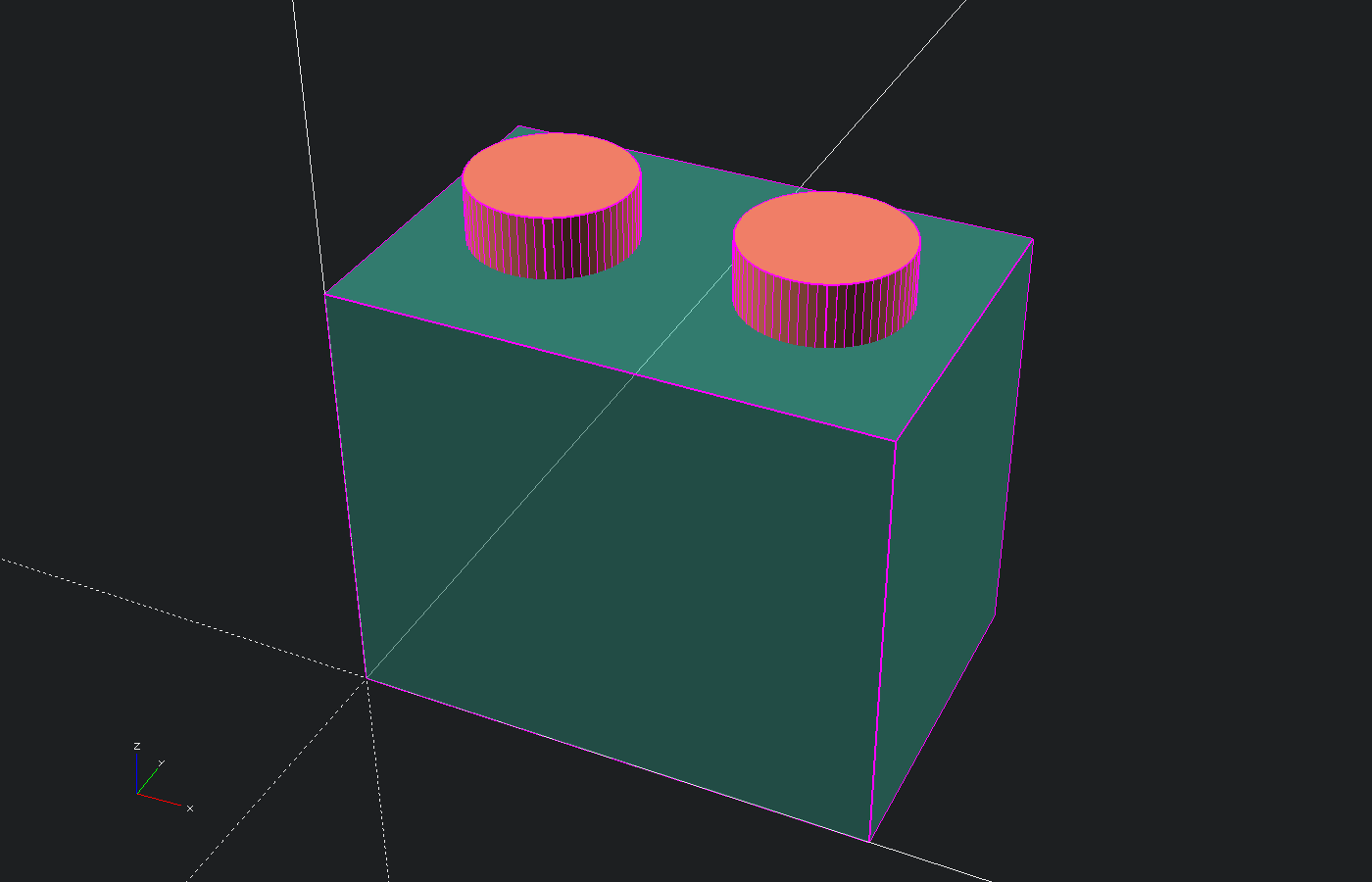
# modifier, covered in the OpenSCAD Boolean operations guide.Press F5 to preview the model. Change d = 18 to make both holes wider or narrower. Change the last value in cube([60, 40, 50]) to adjust the height. Press F6 after the model looks right.
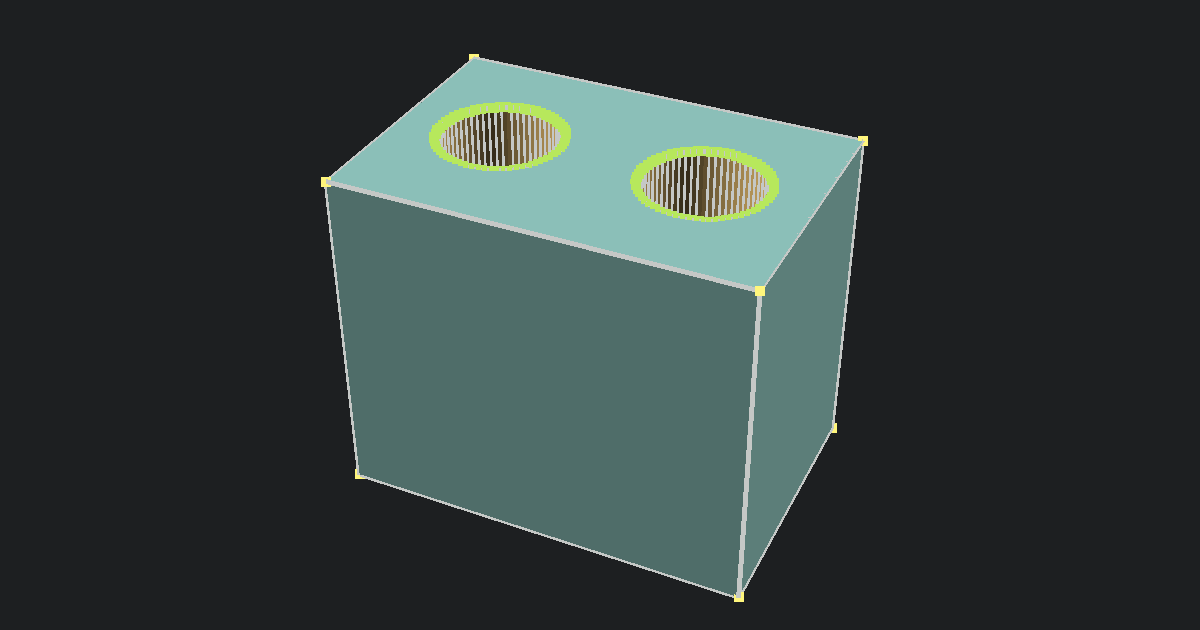
The difference() pattern is one of OpenSCAD's basic Boolean operations. Boolean means a rule for joining, cutting, or keeping shared parts of shapes. Our OpenSCAD Boolean operations guide shows union(), difference(), and intersection() with more examples.
When the full render is finished, export the model as STL. You can inspect the saved mesh in the Free Online STL Viewer, then open it in your slicer. If you save the source as a .scad file first, the Free OpenSCAD Viewer can open it again and export STL in your browser.
The most important lesson is not the organizer itself. It is the pattern. Start with a simple solid. Place another primitive where you want a hole. Subtract it. That same idea can make screw holes, cable slots, cups, brackets, and many other useful parts.
How Do You Make Custom Shapes With Polyhedron?
Once the basic shapes feel easy, polyhedron() lets you make a custom solid from a list of points and a list of faces. Each point has an X, Y, and Z location. Each face lists the point numbers that form one outside surface.
This example makes a square pyramid:
polyhedron(
    points = [
        [-10, -10, 0],
        [10, -10, 0],
        [10, 10, 0],
        [-10, 10, 0],
        [0, 0, 20]
    ],
    faces = [
        [0, 3, 2, 1],
        [0, 1, 4],
        [1, 2, 4],
        [2, 3, 4],
        [3, 0, 4]
    ]
);
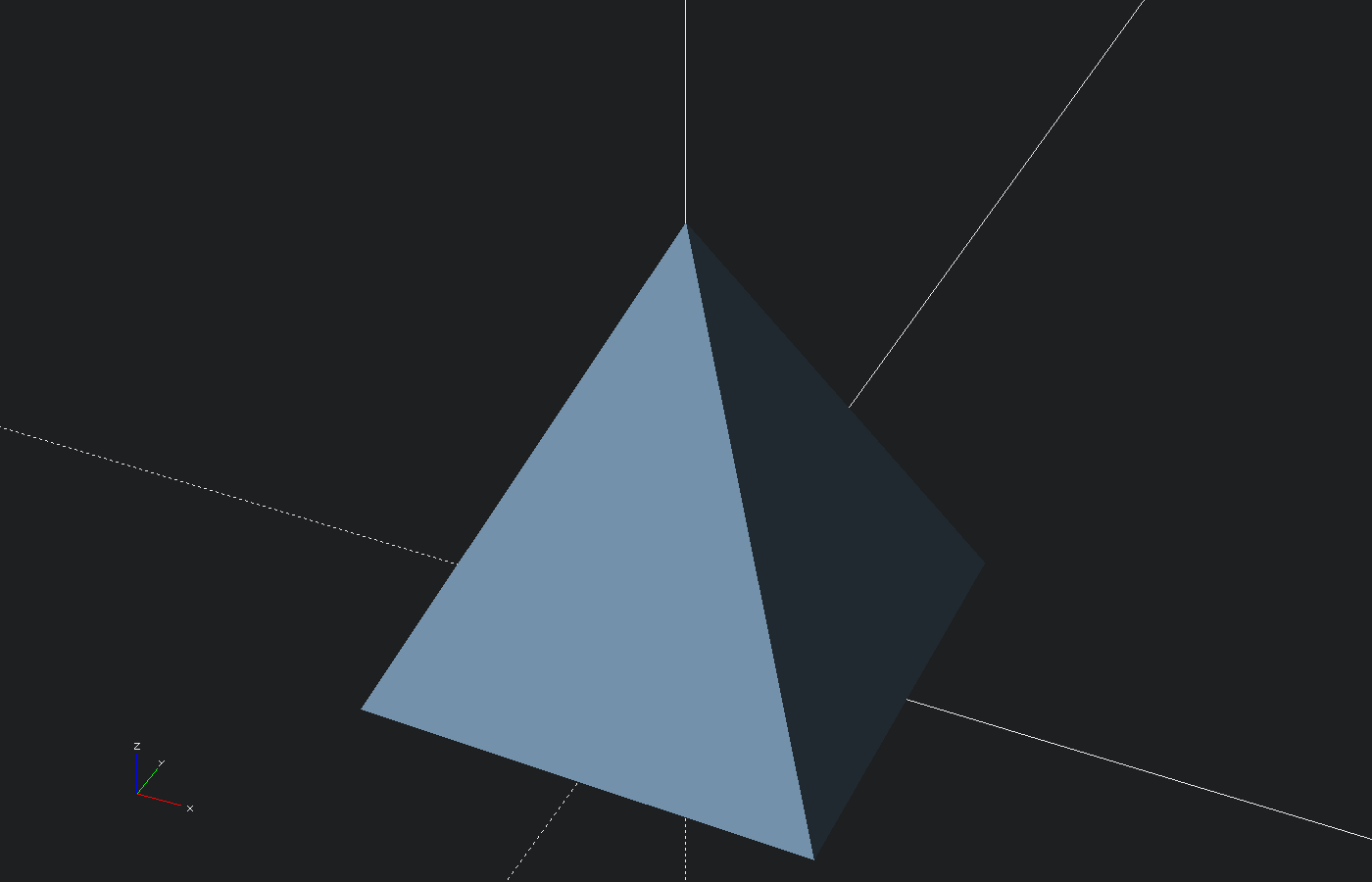
The order of the points in each face matters. A face can point inward if the order is wrong. That may cause warnings or a broken render.
You do not need polyhedron() for most first projects. Cubes, cylinders, spheres, and cutting tools are easier to edit. Learn polyhedrons when you need a shape that the simpler commands cannot make.
Frequently Asked Questions
What is a primitive in OpenSCAD?
A primitive is a simple built-in shape. OpenSCAD uses primitives as the starting blocks for larger models. You can resize, move, join, and cut them with other commands.
What are the main 3D primitives in OpenSCAD?
The four main 3D primitives are cube(), sphere(), cylinder(), and polyhedron(). Cube, sphere, and cylinder are the best ones to learn first. Polyhedron is useful when you need a custom solid made from points and faces.
How do I make a cone in OpenSCAD?
Use cylinder() with different bottom and top sizes. For example, cylinder(h = 30, d1 = 24, d2 = 0); makes a pointed cone. Use a top diameter above zero to make a flat-topped cone.
Why do my spheres and cylinders look blocky?
Round shapes are made from flat sections. Increase $fn to use more sections, such as $fn = 48 or $fn = 64. Higher values look smoother but may render more slowly.
What does center=true do in OpenSCAD?
center = true places the middle of a cube or cylinder at the origin. With the normal center = false setting, the shape starts at the build plane and grows upward. Centering can make rotation and matching cuts easier.
Start Building with Simple Shapes
You now know the basic OpenSCAD primitives and what each one does. Start with cube, sphere, and cylinder. Use $fn when a round shape needs to look smoother. Save polyhedron for the day when simpler shapes cannot do the job.
The fastest way to learn is to change one number and look at the result. Open the OpenSCAD Online Playground, paste in the organizer code, and render it. Make the holes wider, move them closer together, or turn the box into a taller tool holder. One small change is enough to begin making the model your own.