What is filament painting?
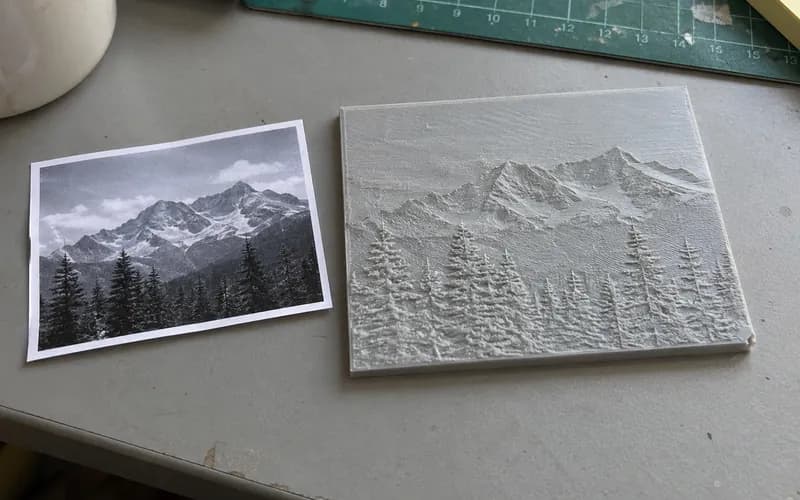
Filament painting is a way to print a picture using your 3D printer and only a few colors. The print is a thin, flat panel, and every layer is one filament. The trick is that thin plastic is a little see-through, so a light filament printed over a dark one looks like a shade in between. How see-through a filament is comes down to its TD (transmission distance). A filament with a higher TD lets more of the color under it show through, so the tool uses each filament's TD to work out the shades. Stack a few colors and swap filaments at the right layers, and you get a lot more shades than the filaments you loaded.
Taller spots in the model get more layers of the lighter filaments, so they come out lighter. That's why the model looks like a bumpy relief while the colors only really show once it's printed.
Why I made my own filament painting tool
HueForge is the app most people use for this, and admittedly it's really good. It's also paid desktop software, and with it you usually add the filament changes in your slicer by hand. I wanted something you could quickly open in a browser, try with your own photo, and get a file that's ready to slice without typing in any swap heights or paying any money.
How the swaps get into your slicer
There are four ways to download your painting, depending on how you print:
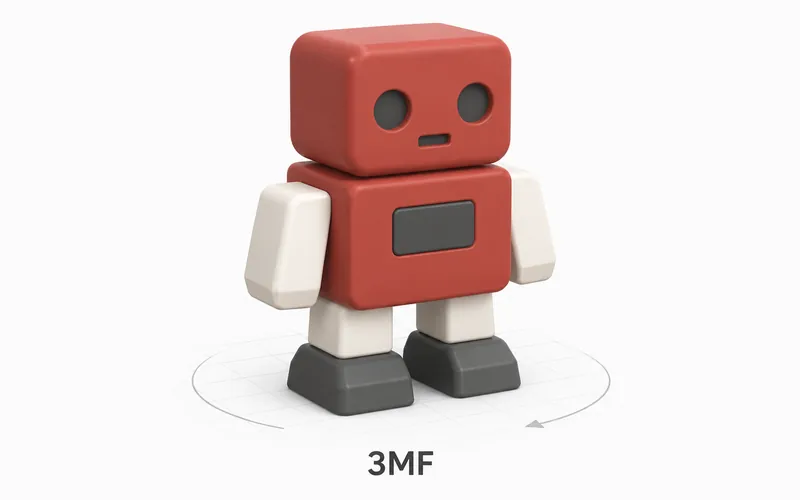
- 3MF for Bambu Studio. Each filament band is its own part with its own color. When loaded, Bambu Studio will say it can only load the geometry, which is normal for files from other apps, so click OK. Then the color window opens. Choose Append and click OK, and each band gets its own filament in the right color. With an AMS, the swaps happen on their own.
- 3MF for PrusaSlicer. The painting comes in as one model with a color change at the first layer of each new filament. Your printer stops and asks you to load the next one. It also sets the layer height for you, so you don't need a 0.08 mm profile. Just make sure your first layer matches First layer here.
- 3MF for OrcaSlicer. The painting comes in as one model with a pause before the first layer of each new filament, so your printer stops and you can load the next one. Open it with File > Open Project, because importing it as geometry only drops the pauses. It also sets the layer height for you, so you don't need a 0.08 mm profile. The first layer still comes from your profile, so make sure it matches First layer here. OrcaSlicer uses the pause command from your printer profile. Most profiles have one, but a few (like Snapmaker's) leave it empty, so if yours does, add your printer's pause command under Machine G-code in the printer settings.
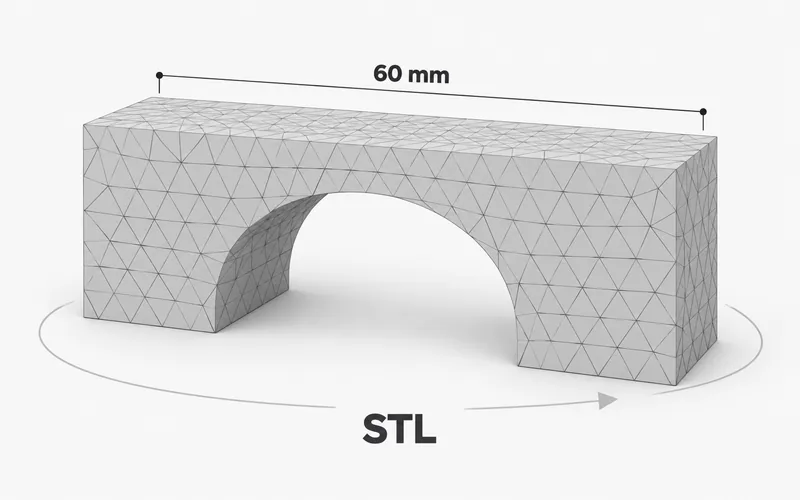
- Plain 3MF and swap list. The plain 3MF works in any slicer. The swap list tells you which layer each filament starts on, so you can add the changes yourself, or add pauses if you swap by hand.
What each setting does
The controls are split into a few sections. Here's what each one does, so you know what to change and why.
Image
Choose or drop a PNG, JPG or WebP. The tool sets the height of each spot from how bright it is, so with a dark to light stack, the dark parts print thin and the light parts print taller. Transparent areas are left out, so a PNG with no background prints as a cutout.
If you don't have a photo but would still like to try the tool, pick one of the examples under Choose image. Each one loads with filaments that match its colors.
Filaments
This is your stack of colors, from the bottom of the print to the top. Currently you can use 2 to 8 filaments.
- Use the up and down arrows to move a filament in the stack, and the X to remove it.
- Click the color square to change a filament's color.
- Change the TD if you have a better number for your filament. A higher TD means more see-through.
- To add a filament, pick it from Add a filament. Choose Add your own to type in a name, color and TD. Your own filaments are saved in your browser, so they're still in the list next time.
I go over picking filaments and TD values in the next section.
Swaps
A swap is the layer where the printer changes to the next filament. On Auto, the tool tries lots of swap layers and keeps the ones that look closest to your image.
Each row shows the layer that filament starts on and its Z height. The layer numbers count the base layers too, the same way your slicer counts them, so you can check them in the slicer's layer preview. To get more or less of a color, change the layer it starts on. Click Auto to go back to the tool's pick.
If a row says "not reached", the picture never gets that tall, so that filament won't show in the print. Changing the filament list or the layer settings can put the swaps back on Auto, so it's best to fine-tune them last.
Slicer layers
These have to match the profile you'll print with, or the swaps end up on the wrong layers.
- First layer and Layer height are the same numbers as in your slicer profile. Thinner layers give smoother shading, because each layer only adds a small step of color.
- Base layers are solid layers of your first filament under the whole picture, counting the first layer. They give the painting a solid back so it's not flimsy.
- Painting layers is the most layers the picture can use above the base. More layers give smoother blends, but the print gets thicker and takes longer. If the picture doesn't need them all, the extra ones aren't printed, and the tool tells you how many it used.
Size and shape
- Longest side sets how big the painting is, from 20 to 300 mm.
- Detail sets the size of each pixel in the painting. Standard (0.4 mm) is about one line from a 0.4 mm nozzle and is a good place to start. Fine (0.25 mm) picks up a little more detail but makes bigger files, and Draft (0.6 mm) is faster for big paintings. Each button shows how many pixels wide and tall you'll get. If one says "too large", pick a coarser detail or a smaller size.
- Shape can be Rectangle, Rounded, Oval or Circle. Rounded lets you set the corner radius. Circle uses the square in the middle of your image, and Longest side becomes the circle's width.
- Border width adds a frame around the edge in your top filament. Set it to 0 for no border.
- Hanging hole adds a hole near the top edge, so you can hang the painting on a nail.
Image adjustments
The tool already stretches your picture so it uses everything from your darkest filament to your lightest. These settings are for fine-tuning after that.
- Brightness makes the whole picture lighter or darker. Lighter means more of it reaches the top filaments.
- Contrast pushes the tones apart or pulls them together. Raise it for a flat or hazy photo, and lower it if the picture looks harsh.
- Smoothing cleans up noise and fine texture, like grain in a photo, while keeping edges sharp. Set it to 0 to turn it off.
Picking filaments and TD values
The filament list goes from the bottom of the print to the top. Most paintings go dark to light, with black at the bottom and white on top. If you put a light filament at the bottom instead, the tool flips the heights for you, so the picture still comes out the right way.
Each filament has a TD, short for transmission distance. It's a number for how much light gets through, so a higher TD means more see-through. Black is usually close to 0.1 and white is often between 3 and 5. The starter list uses the TD values that Polymaker and Prusa publish for their own filaments. Bambu doesn't publish TD values, so for Bambu filament you'll need a value from somewhere else, or a guess you can tweak until the preview looks right.
The color preview is an estimate based on those TD values. Real prints can come out a little different, especially with filaments that have no published TD.
Tips and common problems
The swaps land on the wrong layers. The tool needs to know your slicer's layer heights. Set First layer and Layer height to match the profile you're printing with. Bambu Studio's 0.08 mm profiles start with a 0.2 mm first layer. A lot of printers don't have a 0.08 mm profile at all. If yours doesn't, pick your finest profile and change its layer height to 0.08 mm, and leave the first layer at 0.2 mm. The OrcaSlicer and PrusaSlicer 3MFs set the layer height on their own, so with those you only need to check the first layer. Also don't scale the model in your slicer, because that moves every layer. Change Longest side here instead.
The colors look flat or blocky. With only a few filaments you get a few clear steps between them. Adding a filament between two very different ones, like a gray between black and white, gives smoother shading. Raising the Contrast can also help a dull photo.
The picture looks washed out. Your top filament might be too see-through, or the stack is missing a dark enough base. Try a darker first filament or a lighter top one.
It uses fewer layers than I set. That's fine. Layers the picture never reaches don't get printed, so the painting ends at the highest layer it actually needs. The tool shows how many it uses under Slicer layers.
Print it flat, face up. These are meant to be seen from the front with light on them.
What to do next
If you want to check the colored 3MF before you slice it, open it in the Free 3MF Viewer. If you'd rather print a picture in one color with real depth, try the Free Bas Relief Generator.