Why shrink an STL file?
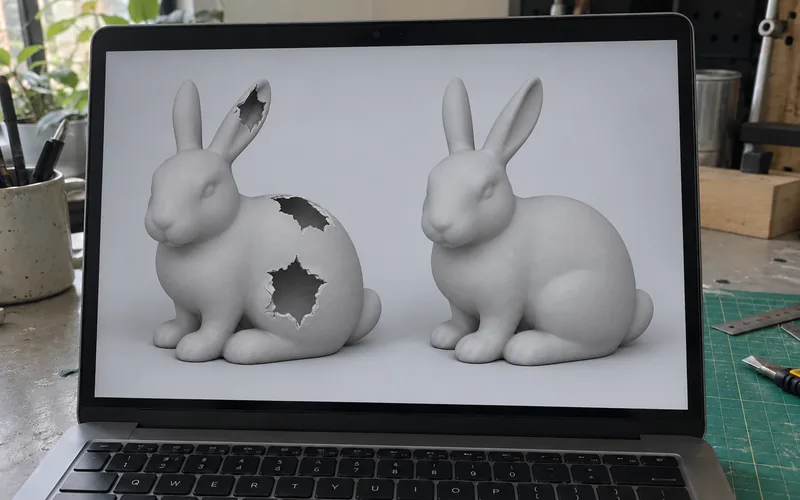
Most of the time it's a size limit. Model sites, print services, email and Discord all cap how big a file can be, and a detailed sculpt or 3D scan can blow past that easily. Dense files are also slow to open and slice, and some tools just choke on them.
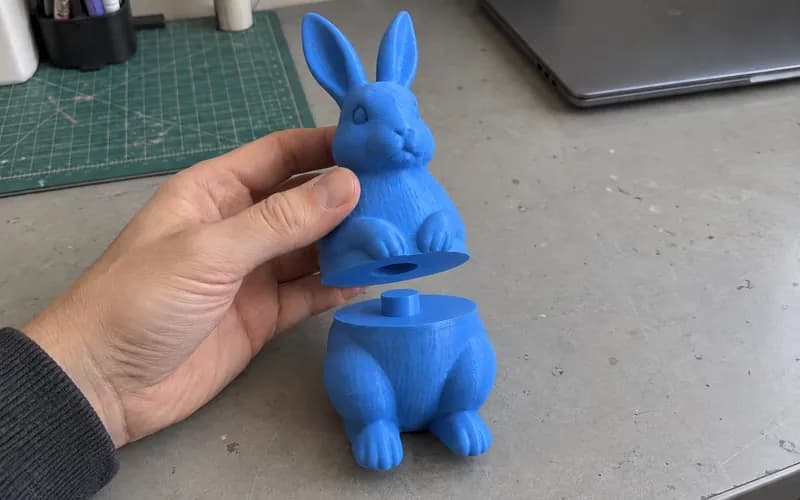
Cutting triangles fixes both. A printed figure rarely needs millions of triangles, since a 0.4 mm nozzle can't show detail that fine anyway. It also gives the 3D Model Splitter fewer faces to work with, so if you plan to cut a model or add color regions, compress it first while it's still a plain mesh.
What changes when you compress a model?
This tool removes mesh detail using mesh simplification. It does not shrink the model to fit a smaller printer. The output keeps the source coordinate system without rescaling, though removing faces can change curves, corners and overall bounds slightly.
The download is a binary STL. It keeps the surface geometry but leaves out colors, textures, material assignments, animation tracks, object names and print settings. Separate parts keep their placement in one file. Animated models use their default pose, not a frame selected from an animation. Keep your original if you need those details later.
Choosing how much detail to keep
The tool starts in By file size. Pick 5, 10, 25, 50 or 100 MB, or type your exact limit, then click Compress model. It removes only as many triangles as it needs to fit and shows how much the shape changed. If the file already fits as a binary STL, nothing is removed.
For manual control, choose By triangles and start with Triangles to keep at 50% and Detail tolerance at 0.1%. Both controls are sliders. You can target as little as 1% of the original triangles and adjust the tolerance from 0.01% to 5%. Click Compress model, then switch between Original and Compressed. Point at a feature and scroll to zoom in closely, with no fixed zoom-distance restriction. Look closely at lettering, screw holes, curved faces and thin walls.
A lower triangle target allows more reduction. A lower detail tolerance limits the approximate shape change relative to the model's size. It is not a guaranteed manufacturing tolerance. If the tool cannot reach your target without exceeding that limit or changing an open boundary, it keeps more triangles. The result shows the count it actually produced.
Change either setting and compress again to compare another result. Every run starts from the source file, so repeated attempts do not keep wearing away an earlier result. Cancel stops the current operation. Clear removes the current model from the workspace.
Understanding the detail tolerance
Triangles to keep sets the target face count. Detail tolerance controls how much the surface is allowed to change while trying to reach that target. A lower tolerance protects the shape more closely, so the tool may keep extra triangles. A higher tolerance allows more change and can remove more faces.
0.01%
0.1%
Default1%
5%
The dashed line shows the original outline. The colored surface shows the compressed model. Look at the magnified edges to see where they separate as tolerance increases. The percentage is an approximate limit relative to model size, not a promise of that exact movement at every point. Start at 0.1%, then compare your result before increasing it.
Why might the output still be large?
An already simple mesh may have little detail to remove. Open edges and disconnected geometry can also limit reduction. Raising the tolerance may help, but inspect the result before accepting the trade-off.
File size and triangle count are different measurements. An OBJ or PLY may store its mesh more compactly than the exported STL. Your new file can have fewer triangles and still use more bytes. The workspace compares the actual source and download sizes instead of promising a fixed saving.
There is no fixed file-size or triangle-count limit. Your device's available memory and your browser still determine which models can finish processing. You can cancel a slow operation and try another file. Empty files, point clouds and files without usable mesh faces cannot be processed. Simplification does not repair holes or guarantee a printable model.
Supported mesh formats
You can open STL, OBJ, PLY, 3MF, GLB, glTF, FBX, DAE (Collada), and AMF. Every format follows the same workflow: open a model, choose a target size or triangle target, compress, then download STL.
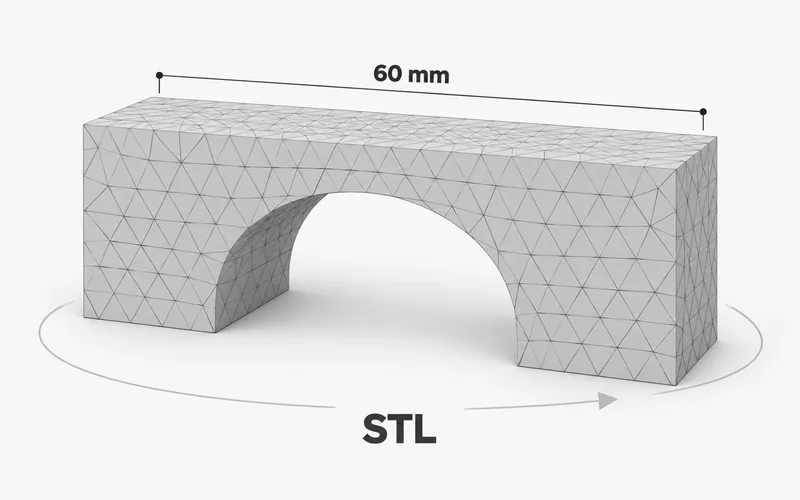
STL is a triangle-based format commonly used for printing. Both ASCII and binary STL are accepted. OBJ and PLY can carry additional surface data, but this tool reads their mesh faces and exports geometry only. PLY point clouds need to be turned into a mesh elsewhere first. For 3MF, the tool reads the built mesh parts and their placements without keeping slicer settings or painted colors.
GLB, glTF, FBX and DAE can describe scenes with multiple parts. The tool applies the parts' transforms before combining their surfaces. For glTF, it uses the default scene. Images are ignored and are not fetched. A glTF file must contain its mesh buffers; if it references a separate .bin file, export a self-contained GLB or embed those buffers first. Draco-compressed GLB or glTF files need to be exported with Draco disabled. AMF files with curved edges need a tessellated mesh export first.
STL does not store a unit label. This tool keeps the source coordinate units and applies part placement and scale transforms, but does not automatically convert meters or inches to millimeters. Check the dimensions in your slicer, especially for GLB and glTF assets authored in meters.
Continue with your lighter model
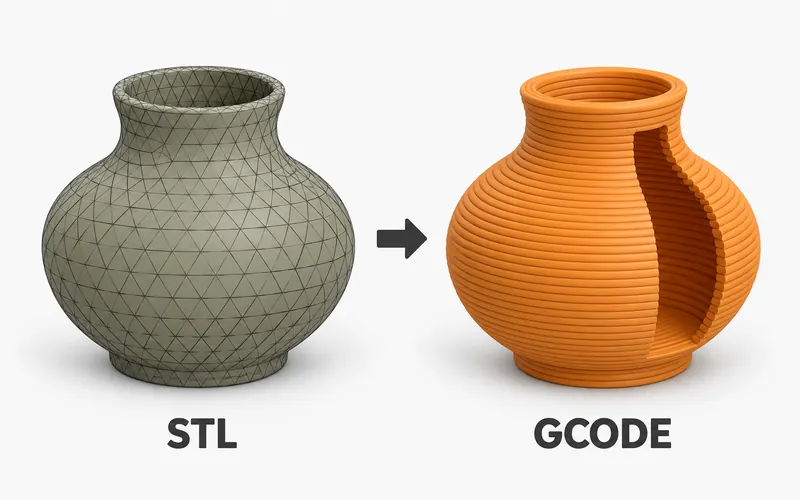
Download the result, then open it in the Free 3D Model Splitter to create regions or make cuts. Use the Free STL Viewer for measurements. For simple single-material prints, the Free STL to Gcode Converter offers a basic next step.