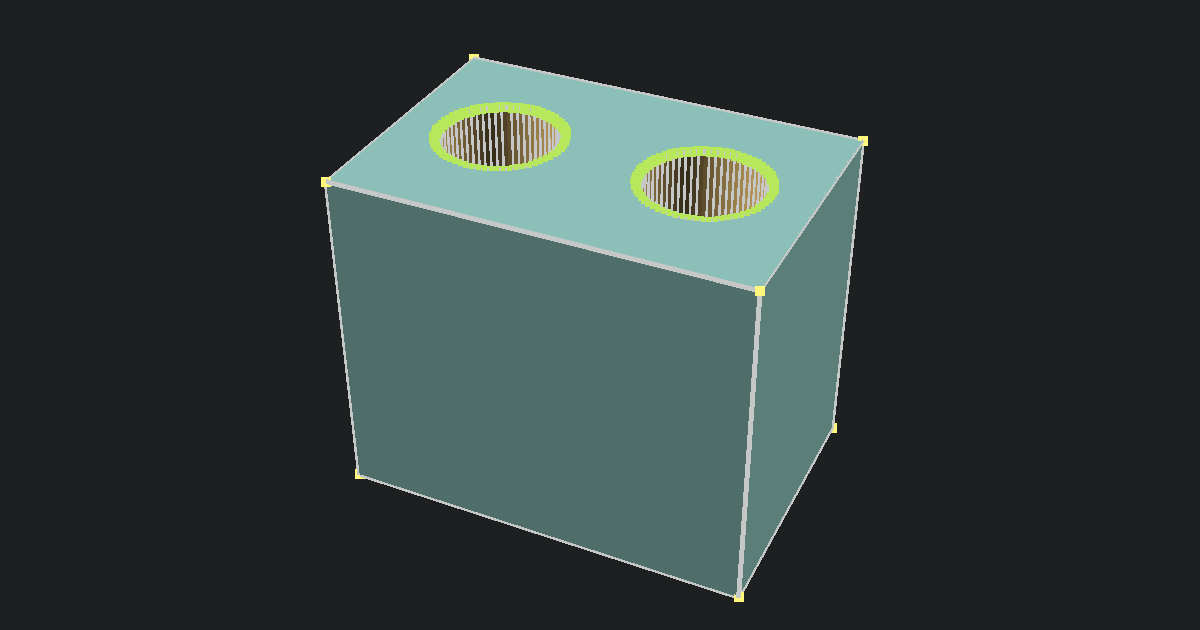
Why STL files break
Most of the broken files I have dealt with come from AI model generators and from models I've cut up or stuck together in Blender. AI tools are great for getting a shape fast, but their meshes are full of tiny holes, doubled faces and bits that cross through each other.
You usually find out when your slicer shows a non-manifold edges warning, a print service rejects your file, or the slicer quietly skips part of a wall. Bambu Studio can fix some of this with its Fix model option, but that only works on Windows. This tool works in any browser.
What are non-manifold edges?
A printable model needs to be a closed shell, kind of like a balloon. Every edge should be shared by exactly two faces, one on each side. A non-manifold edge breaks that rule. Usually three or more faces meet on one edge, often because two parts were jammed together or a face got doubled up.
When that happens, the slicer can't tell what's inside the model and what's outside, so it has to guess. Sometimes the guess is fine. Other times you get a missing wall, odd infill or a gap in a layer.
Two other problems show up with it a lot. Open edges have only one face, which means there's a hole. Flipped faces point inward instead of out, so the slicer thinks that bit of the surface is inside out. This tool counts all three before you repair.
What repair changes and what it can't fix
When you click Repair model, the tool:
- joins corners that sit at exactly the same spot
- removes doubled faces and faces with no area
- turns flipped faces around so they all point out
- cuts out faces stuck on non-manifold edges
- fills every hole with a new patch
- checks the result with Manifold, an open-source geometry library built for solid models
Hollow spaces inside a part stay hollow. If a whole part is inside out, it gets turned the right way.
Keep in mind that the repair can't fix a single part that crosses through itself, make walls thicker or bring back missing detail. A patch closes a hole, but it can't know what was supposed to be there. Small holes get a simple patch that follows the edge of the hole. Big flat holes get a flat cap. Big curved holes get a cone-shaped patch that meets at a point in the middle, so check those in the preview.
Merge overlapping parts or keep them separate?
Merge overlapping parts is on by default. A lot of models are built from parts pushed into each other, like an arm stuck into a body. Merging joins them into one solid and removes the faces hidden inside, which gives your slicer a clean model to work with. It takes longer on big files.
Turn it off if you want the parts to stay separate in the STL, for example so you can split them apart in your slicer later. The tool still fixes each part on its own.
Remove small floating pieces is off by default. It deletes separate pieces smaller than 1% of the largest part's volume. AI models and scans often have little specks floating around them, and those turn into tiny blobs on the print bed. Leave it off if your model has small separate parts you want to keep, like a loose pin.
Common problems
The model looks tiny. Lots of AI and game models are saved in meters, so a figure might show up as 0.15 units across. When a model is less than 1 unit across, the tool asks if you want to scale it to millimeters. Click Scale to millimeters to make it a more manageable size, or Keep original if it really is that small.
It says Partly repaired. Some meshes are damaged in so many spots that a few edges can't be closed. You can still download the file, and it may slice fine. If it doesn't, export the model again from the app it came from, or run the repair again with Merge overlapping parts switched the other way.
A patch looks pointy or flat. That's a big hole being closed. The tool can't guess the missing shape, so it closes the hole as simply as it can. If the spot will be visible on the print, fixing it in your modeling app will look better.
The file is slow to repair. Everything runs on your device, so a model with a few million triangles takes longer and needs a good amount of memory. If your browser struggles, shrink the model first with the Free 3D Model Compressor.
About STL files
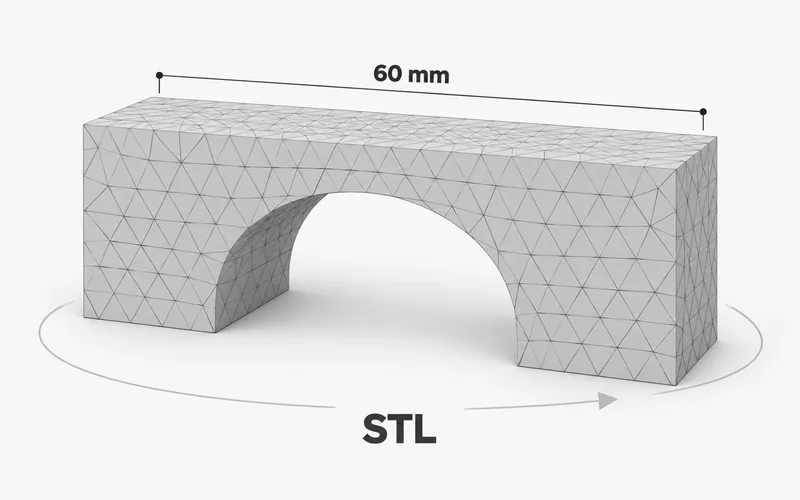
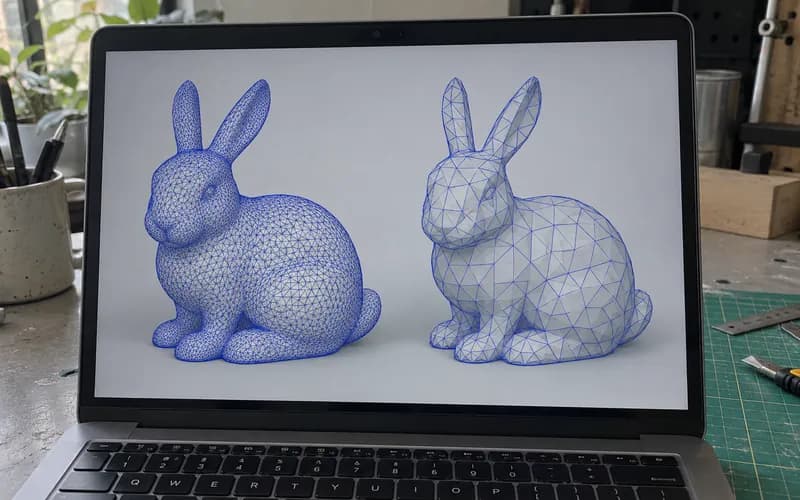
STL is the most common file type for 3D printing. It stores a model as a list of triangles and nothing else, so there are no units, colors or print settings in it. It comes in text (ASCII) and binary versions, and this tool saves binary because it's smaller. Because STL is so simple, nothing stops an app from saving a broken shape, which is why repair tools exist in the first place.
What to do next
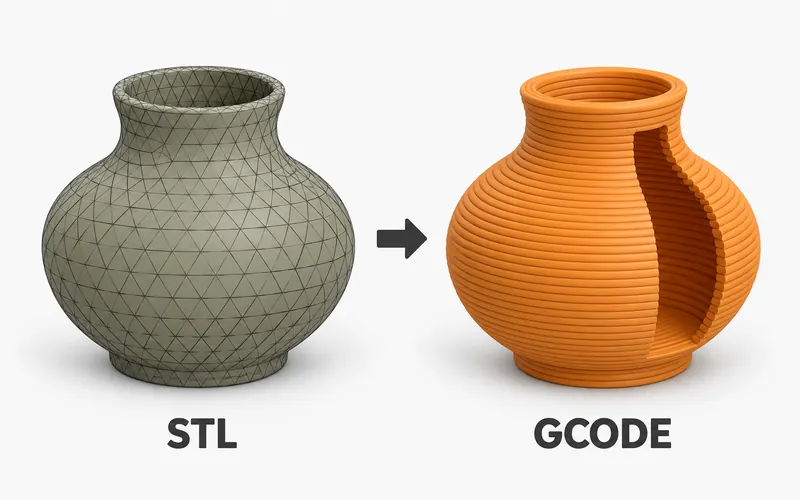
Once your model is fixed, check its size with the Free STL Viewer, then slice it with the Free STL to Gcode Converter or your usual slicer.