How to get your world file
Save and quit your world in Minecraft first, so your newest builds are in the file.
Java Edition (Windows, Mac or Linux)
- Open Minecraft and click Singleplayer.
- Click your world, then Edit, then Open World Folder. This shows you where your world is saved.
- In the tool, click Choose world folder and pick the folder with your world's name.
All your Java worlds are in the saves folder. On Windows, type %appdata%\.minecraft\saves into the File Explorer address bar. On a Mac, it's ~/Library/Application Support/minecraft/saves.
Bedrock Edition (Windows)
- Open Minecraft and click Play.
- Click the pencil icon next to your world.
- On the General tab, find File management and click Export world.
- Save the .mcworld file. Then drop it on the map in the tool, or click Choose files and pick it.
Right now, Minecraft only lets you export worlds on Windows. Phones, tablets and consoles don't have the Export button.
Why print your Minecraft world
You can spend weeks on a Minecraft build, and then it only lives on a screen. A 3D print gives you something to put on a shelf, or give to the kid who built it. Most people come here with one thing in mind: a base, a castle, a village or a spot on a server they love. So the tool starts with a map of your world, and you pick just the part you care about.
I made it free, and it reads your save right in the browser. There is nothing to install and no account to make, unlike some other tools.
What carries over and what gets left out
Every full block becomes a cube with its own color. Grass, leaves and water change color with the biome. By default, slabs, stairs, fences and walls print as full blocks. Fence posts, glass panes and other thin parts would be too thin to print at most sizes, so a fence line becomes a small wall. Snow layers and carpets are too thin to print, so they color the top of the block under them instead.
Some things get left out on purpose. A flower or a torch would be smaller than your nozzle, so tall grass, flowers, vines, torches, signs, rails and buttons are skipped. Mobs, item frames and armor stands are not blocks, so they never show up. Similar colors get merged when you pick fewer filaments.
If you want those small parts anyway, pick the 3D blocks style and turn on Print everything under Blocks to include. It keeps slabs, stairs, fences, doors, flowers, torches, lanterns and carpets at quarter-block detail, so a fence post prints half a block thick. Some of those pieces may be too thin to print, so make the model as big as you can. Grass and ferns are still left out, since they would cover whole fields in tiny bumps. Print everything works on areas up to 128 × 128 blocks instead of 512 × 512, because each block gets 64 times more detail.
By default the tool also fills caves and closed rooms you can't see from above. That keeps the print solid and saves you from walls that are hollow inside. You can turn that off in Advanced.
Pick the right style
3D blocks is the closest to the game. Trees, buildings and overhangs all stay. It is the best pick for builds, but trees and bridges will need supports.
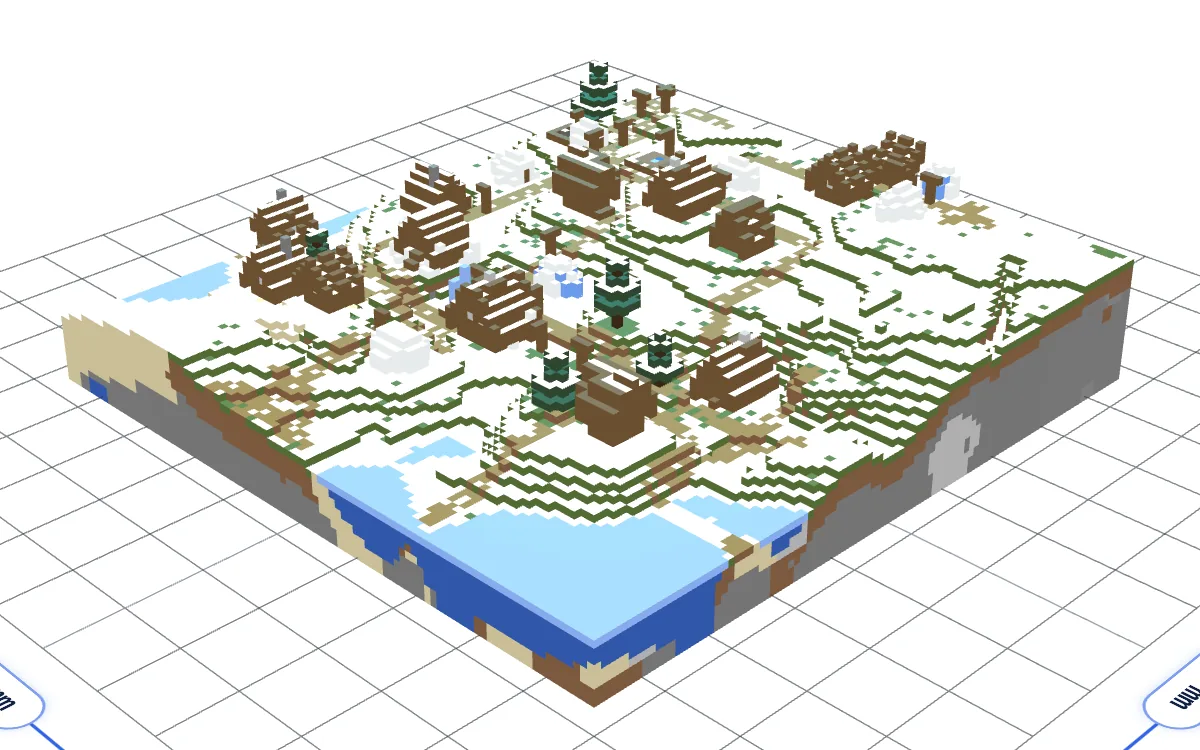
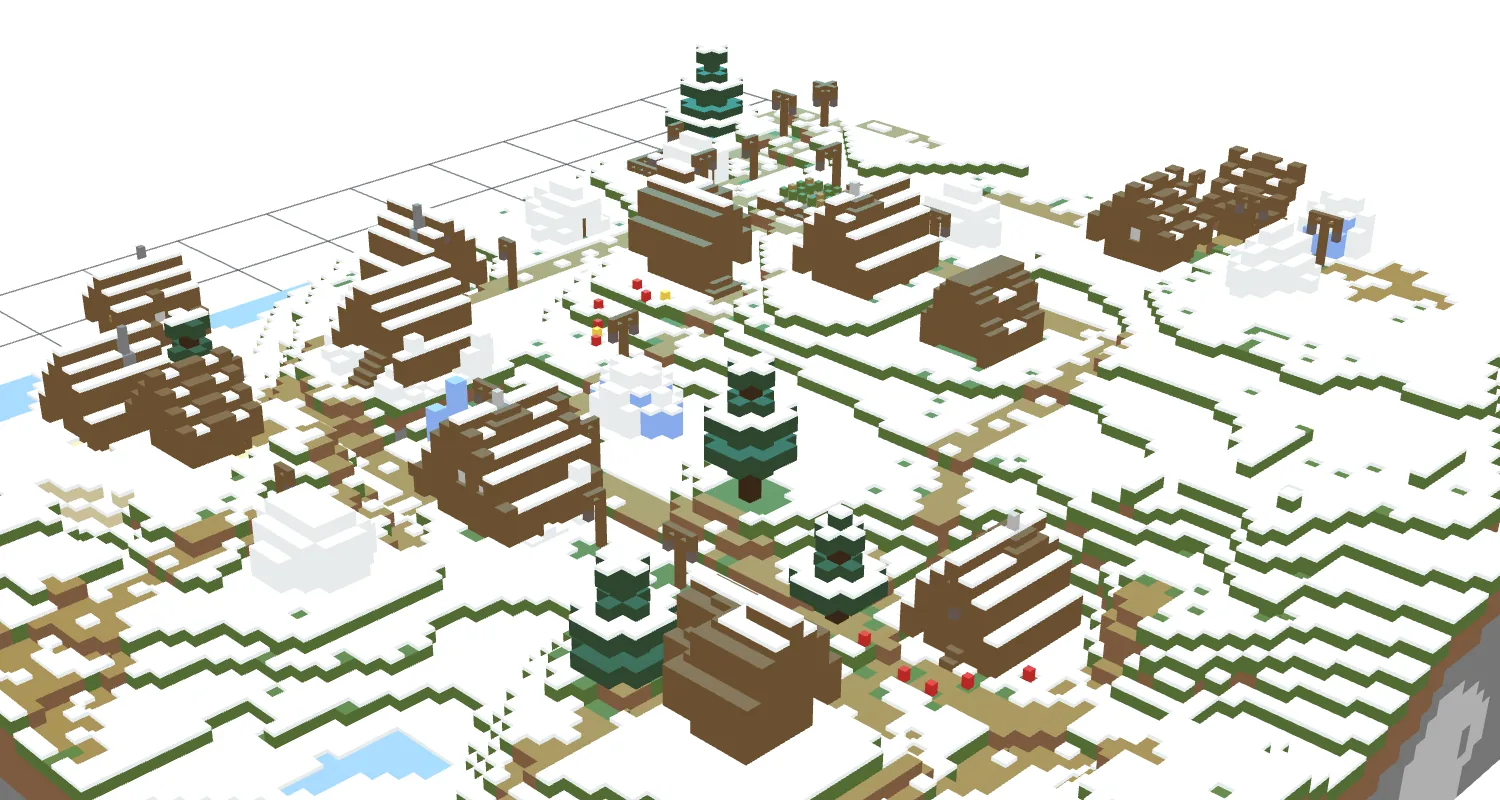
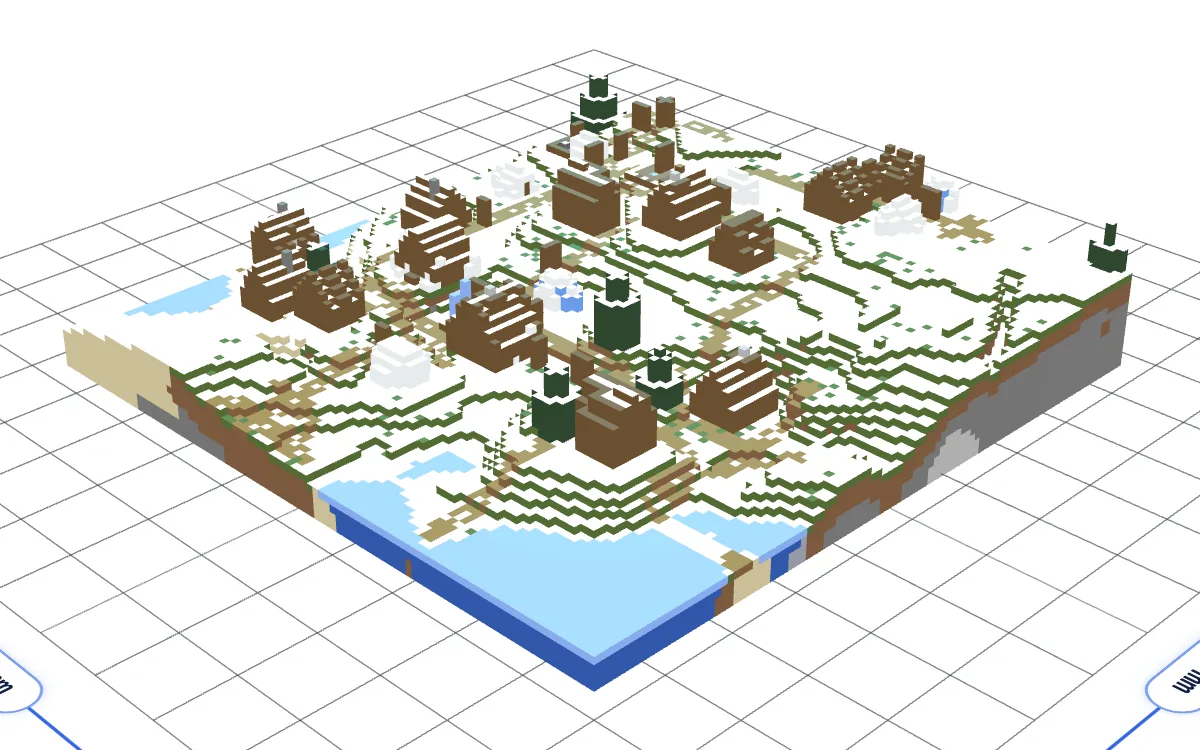
Heightmap fills each column solid up to its top block. Trees turn into green bumps and nothing hangs over open air, so it prints easily without supports. It works well for big landscapes.
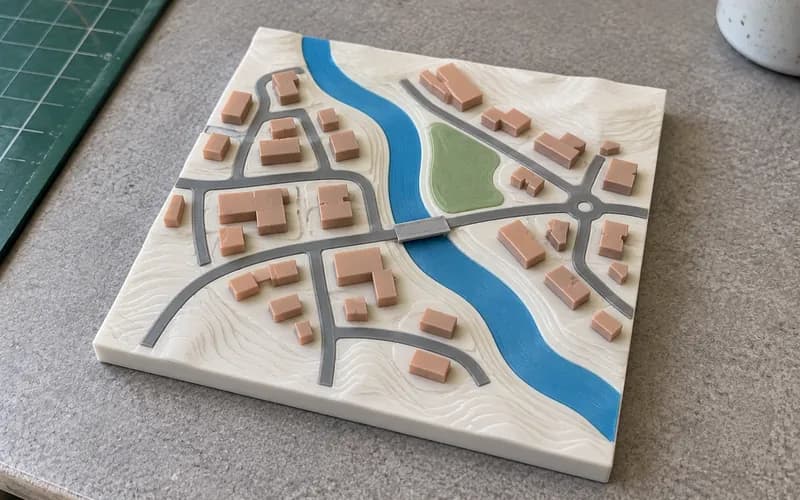
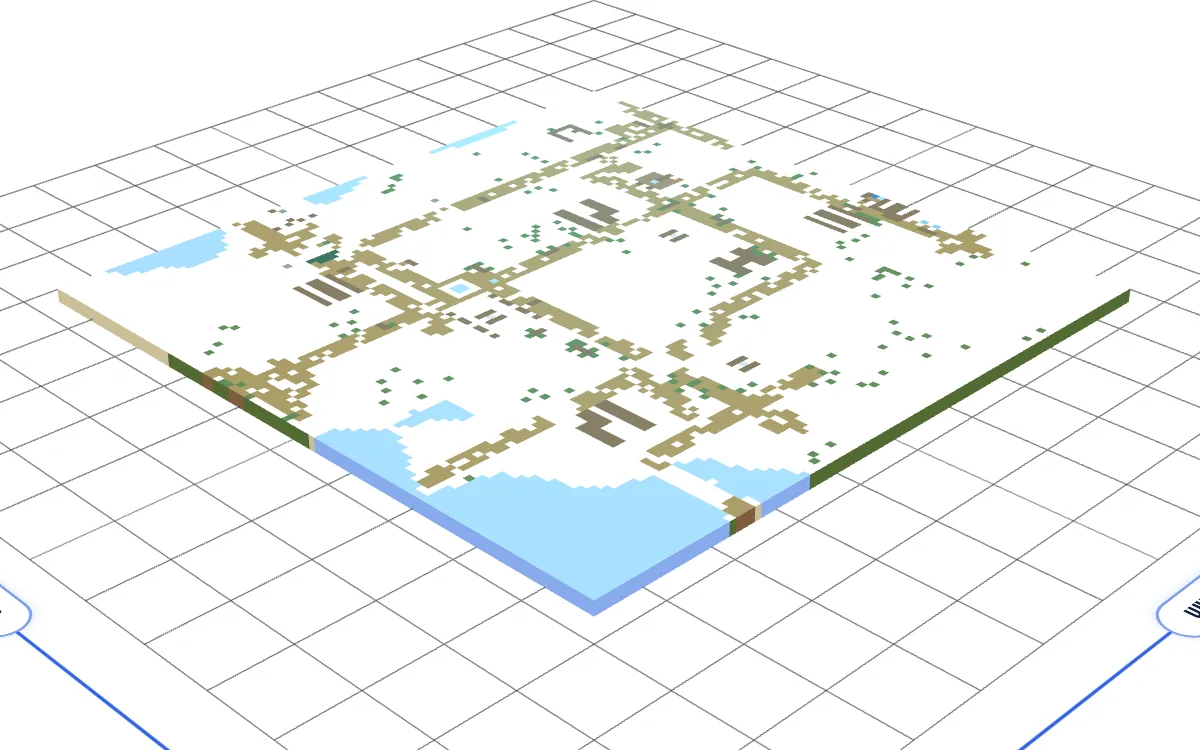
Flat map makes a thin tile that shows the top color of every block, like the map item in the game. It prints fast, and it really only makes sense with several colors.
Big builds and tiles
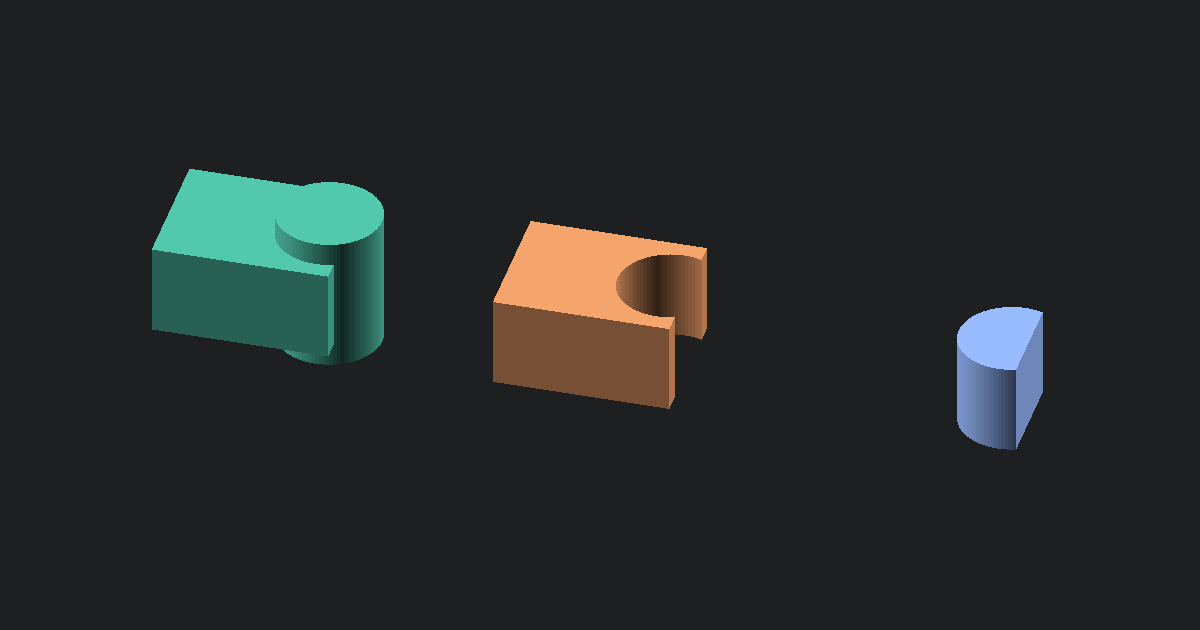
One area can be up to 512 × 512 blocks, or 128 × 128 with Print everything on. If the model is bigger than your print bed, open Advanced and turn on Split into tiles. Tiles split along block edges. With Connectors between tiles on, you also get small bow-tie keys. Each key glues into pockets under two neighbouring tiles and pulls them together. The pockets need a base of at least 3 mm, and the tool raises it for you. If the keys are too tight or too loose, change Connector clearance and print one test key before the full set.
Common problems and how to fix them
| Symptom | Solution |
|---|---|
| The model is a tall solid block | The height range goes too deep. Open Advanced and raise Bottom Y. |
| Trees or bridges sag | They hang over open space. Turn on supports in your slicer, or use the Heightmap style. |
| Tiny details won't print | Blocks under about 0.5 mm are smaller than most nozzles. Make the model bigger or pick a smaller area. Around 1 mm per block is a good start. |
| Part of the area is empty | Those chunks were never fully generated in the game. Walk around that area in Minecraft first, then open the world again. |
| The Nether has a ceiling | Lower Top Y in Advanced to cut it off. |
| The world won't open | Worlds from the Minecraft Marketplace are encrypted, so they can't be read. Worlds you made yourself work fine. |
| The slicer feels slow | Big forest areas make a lot of triangles. Pick a smaller area or split the model into tiles. |
About the file formats
Java worlds are a folder with a level.dat file and region folders full of .mca files. Each .mca file holds 32 × 32 chunks of the map. The Overworld is in region, the Nether in DIM-1 and the End in DIM1. This tool reads worlds saved in Minecraft 1.13 or newer.
Bedrock worlds keep their blocks in a small database inside a db folder. A .mcworld file is just that world folder zipped up, which makes it the easiest thing to upload. This tool reads Bedrock worlds saved in 1.2.13 or newer.
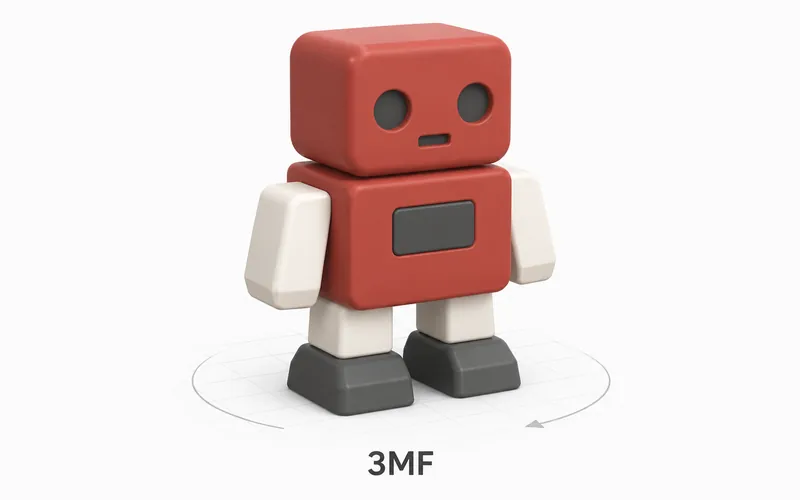
3MF is the newer print format. It keeps units and colors in one file. In the files from this tool, every part is painted with a filament slot that Bambu Studio and OrcaSlicer read.
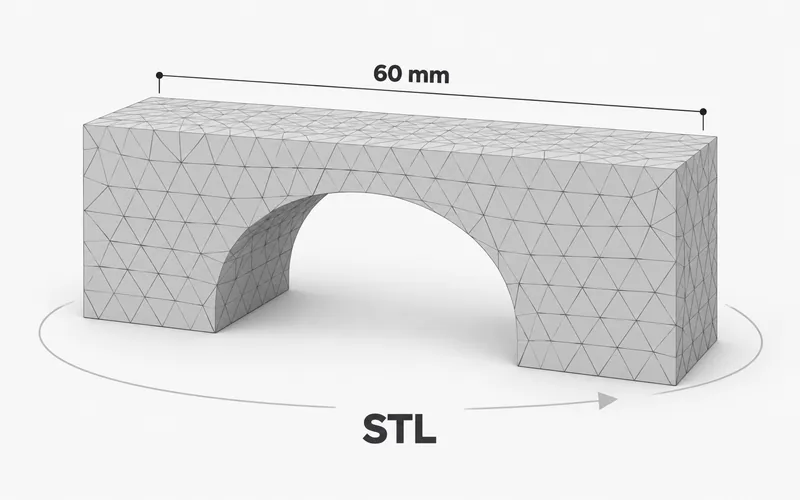
STL is the oldest and most common print format. It only stores the shape, with no color, and every slicer opens it.
What to do next
Open your colored file in the Free 3MF Viewer to check the colors before you slice. Want a print of a real place instead? Try the Free 3D Printable Map Maker.